> ## Documentation Index
> Fetch the complete documentation index at: https://docs.hologram.io/llms.txt
> Use this file to discover all available pages before exploring further.
# Update account details
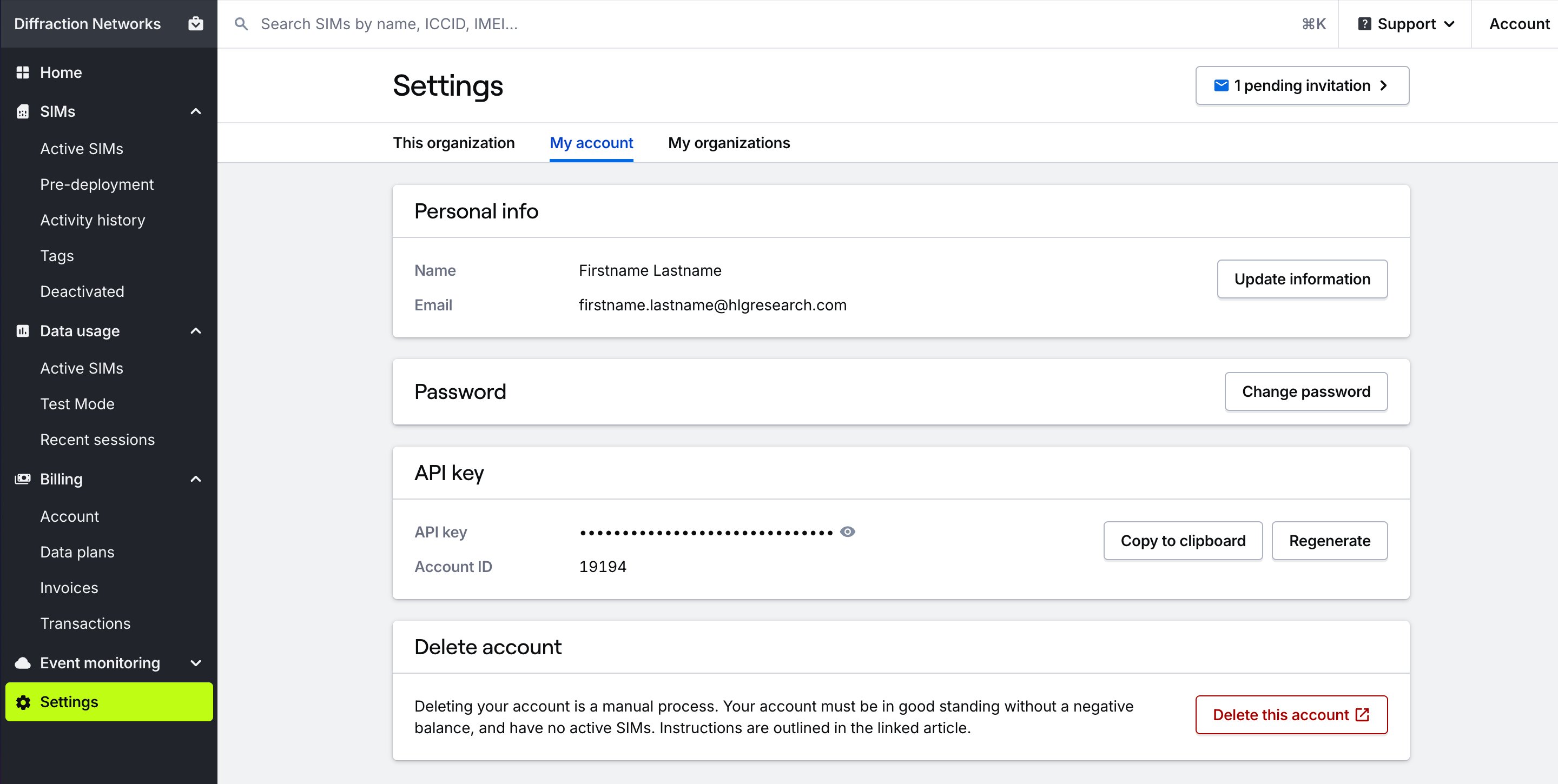
> Update your name, email address, and password in your account settings. Under the **Settings** page in the main menu, open the **My account** page to update account details, find your API key, and view pending invitations.
 ## Update name or email address
From the **Settings** section in the main menu, open the **My account** page.
In the **Personal info** card, press the **Update information** button to update your name or email address.
## Change password
From the **Settings** section in the main menu, open the **My account** page.
In the **Password** card, perss the **Change password** button to change your password. You will use your new password the next time you log in.
## Change default organization
Choose which organization opens by default when you log in.
## Switch organizations
Change the active organization in your dashboard.
## Accept an invite
Accept an invite to collaborate in an organization.
## Delete account
Deleting your account is a manual process. My account must be in good standing without a negative balance, and have no active SIMs. Instructions are outlined in [this guide](/dashboard/account/delete-account).
## Update name or email address
From the **Settings** section in the main menu, open the **My account** page.
In the **Personal info** card, press the **Update information** button to update your name or email address.
## Change password
From the **Settings** section in the main menu, open the **My account** page.
In the **Password** card, perss the **Change password** button to change your password. You will use your new password the next time you log in.
## Change default organization
Choose which organization opens by default when you log in.
## Switch organizations
Change the active organization in your dashboard.
## Accept an invite
Accept an invite to collaborate in an organization.
## Delete account
Deleting your account is a manual process. My account must be in good standing without a negative balance, and have no active SIMs. Instructions are outlined in [this guide](/dashboard/account/delete-account).