> ## Documentation Index
> Fetch the complete documentation index at: https://docs.hologram.io/llms.txt
> Use this file to discover all available pages before exploring further.
# Auto-refill your account balance
> Most Hologram organizations are prepaid and have an account balance that they will draw down from like a debit card or checking account. **Auto-refill** automatically adds funds to your account when your balance falls below a specified threshold, helping prevent service interruptions for your IoT devices.
**Note:** We recommend that **all organizations with prepaid billing** enable auto-refill to help prevent service interruptions for your IoT devices. Account auto-refill does not apply to organizations with monthly invoicing.
## Set up account auto-refill
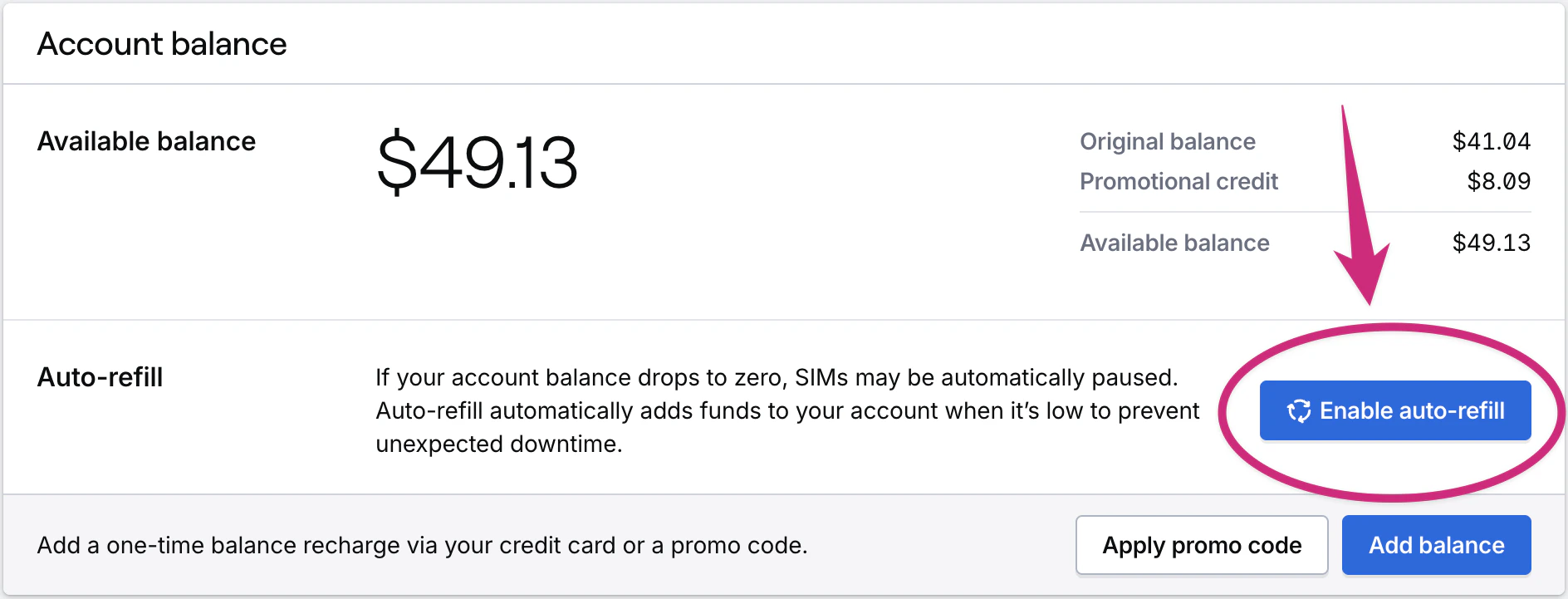
In your Dashboard, open **Billing** from the left navigation. The **Account** page opens by default. Scroll to the **Account balance** card, which will display your current balance and auto-refill settings for your organization.
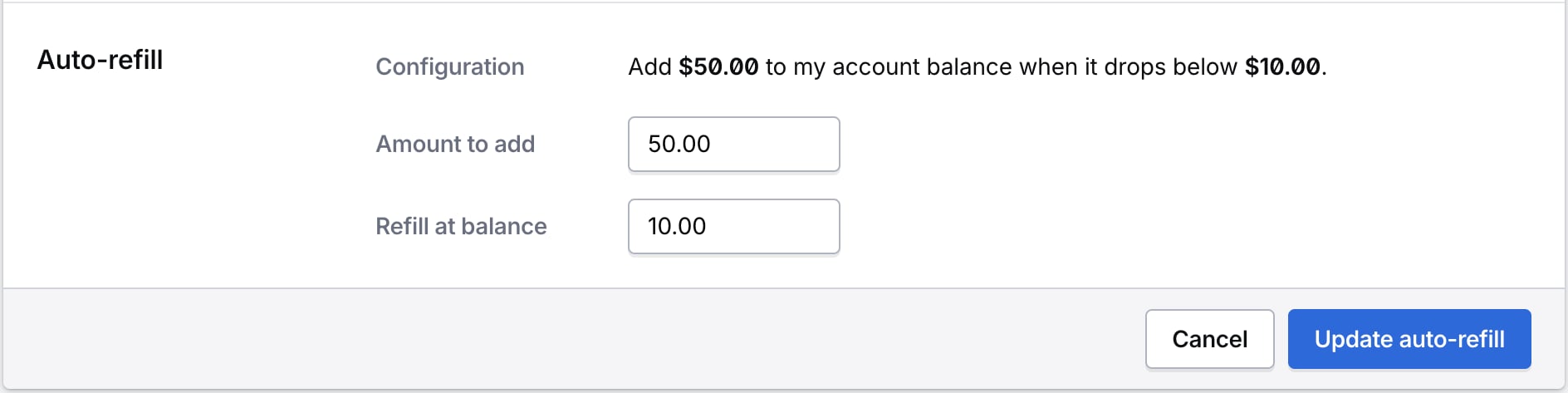
 Enter the minimum balance threshold that triggers auto-refill, and the amount to add when auto-refill is triggered. Save your changes.
 ## Change account Auto-refill during activation
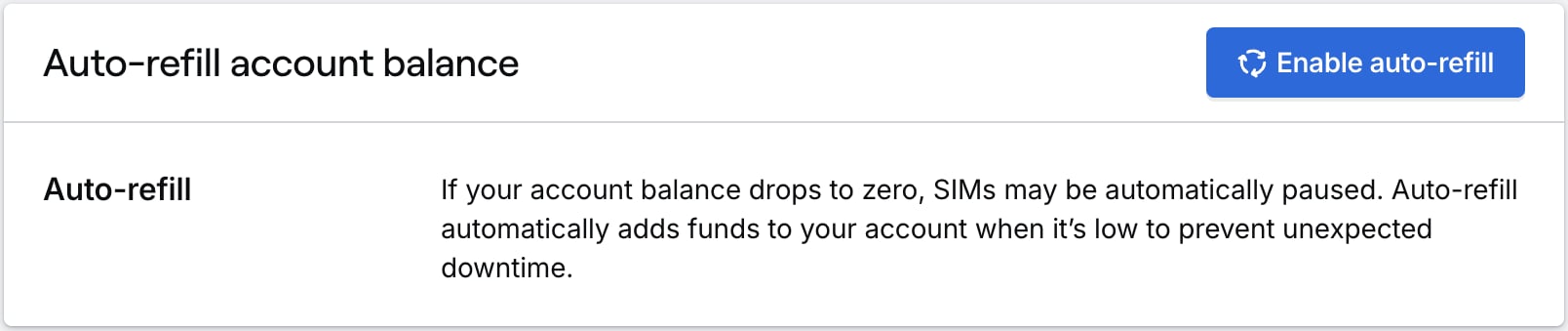
If you have not yet configured auto-refill for your organization, it will appear in the final **Pay and activate** step of the activation process. If you do have auto-refill set up this information will not appear in the activation workflow.
## Change account Auto-refill during activation
If you have not yet configured auto-refill for your organization, it will appear in the final **Pay and activate** step of the activation process. If you do have auto-refill set up this information will not appear in the activation workflow.
 ## Related actions
Configure auto-refill during SIM activation
## Related guides
## Related actions
Configure auto-refill during SIM activation
## Related guides