> ## Documentation Index
> Fetch the complete documentation index at: https://docs.hologram.io/llms.txt
> Use this file to discover all available pages before exploring further.
# Add or change a billing address
> A billing addresses is required for all organizations to activate SIMs, make purchases, and refill account balances.
## Add or change a billing address
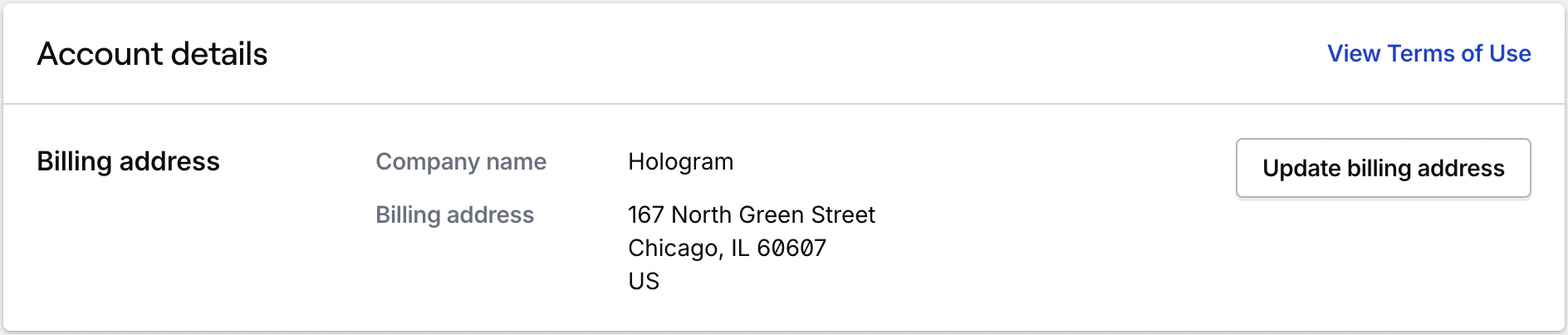
Expand the **Billing** section in the main menu and navigate to the **Account** page. Scroll to the **Account details** card.
In the **Account details** card, select **Update billing address**.
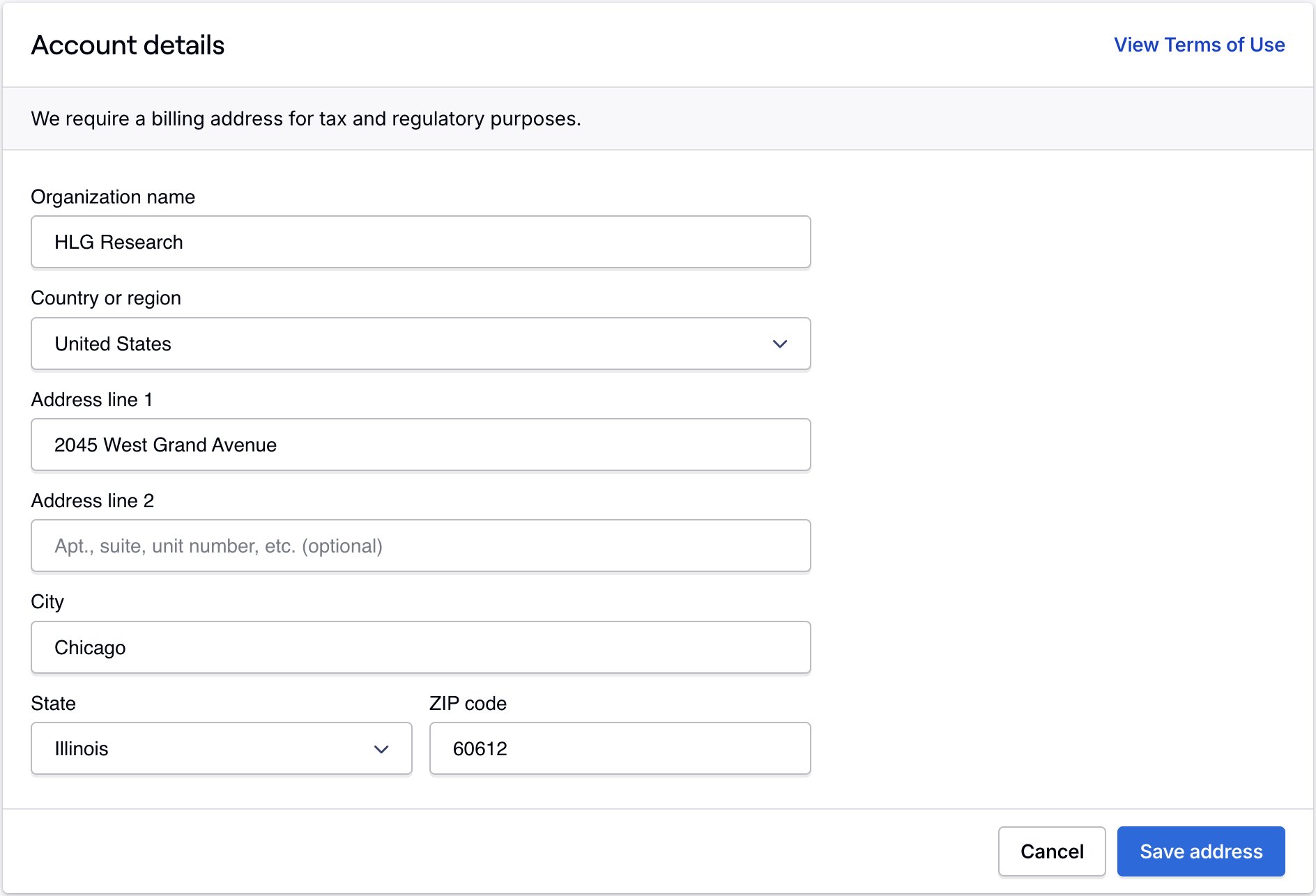
 In the form that displays within the card, enter your billing address and select **Update billing address** to save.
 ***
## Related guides
Use the Billing Account page to add or change your billing address
Where to manage billing, payment methods, and history
***
## Related guides
Use the Billing Account page to add or change your billing address
Where to manage billing, payment methods, and history