> ## Documentation Index
> Fetch the complete documentation index at: https://docs.hologram.io/llms.txt
> Use this file to discover all available pages before exploring further.
# Create a new Hologram account
> Create a new Hologram account and learn how to manage your globally connected SIMs, understand data usage, collaborate with your team, and receive billing information.
## Create a free Hologram account
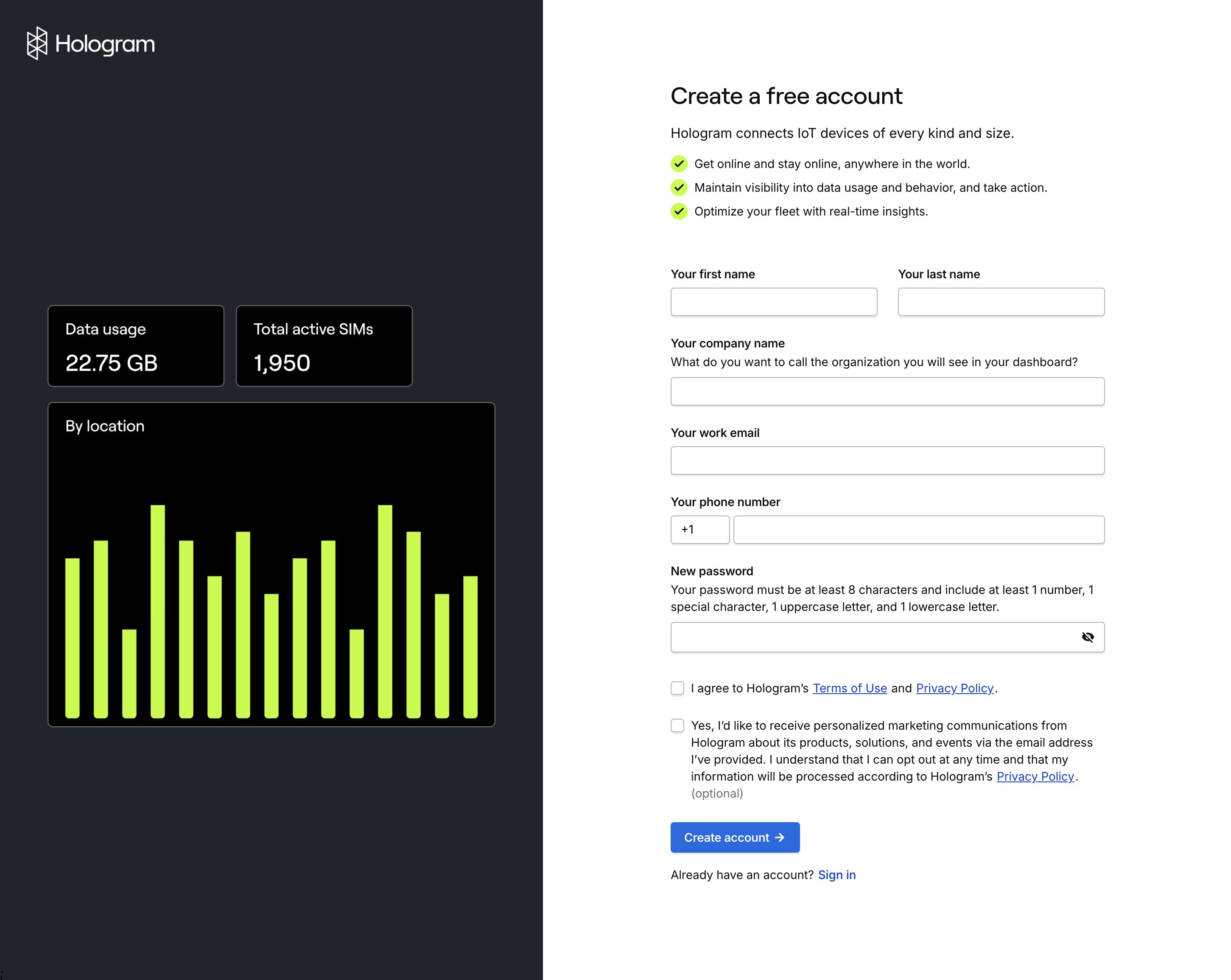
[Sign up for a free Hologram account](https://dashboard.hologram.io/account/register) using your work email address.
 ## Accept an invitation to collaborate
### If you have not yet created a Hologram account...
Press the **Create account** button in your invitation email and create a new Hologram account. This will create a new Organization within your account.
Using the **Organization dropdown** menu in the top left corner of your dashboard, switch to the organization you were invited to.
### If you have already created a Hologram account...
In order to accept an invitation, make sure you have first [verified your email address](/guides/troubleshooting/what-can-i-do-if-i-havent-received-a-verification-email).
Press the **Accept invite** button in your invitation email and log in to your account. You will join the new organization and it will open automatically.
If you can't find the email, log in to your dashboard, Navigate to the **Settings** section in the main menu, open the **My account** page, navigate to the **Organizations** tab, and press the **Accept invitation** button.
{/* TODO: Add image showing account creation form*/}
## Log in to the Hologram Dashboard
If you already have a Hologram account, you can access your dashboard by logging in.
Head straight to [dashboard.hologram.io](https://dashboard.hologram.io), or visit [hologram.io](https://www.hologram.io/) and look for the **Log in** button in the upper right corner of the website.
{/* TODO: Add image showing Log in button on Hologram.io*/}
At the login screen, enter your email and password to access your dashboard.
{/* TODO: Add image showing login screen*/}
If you don't have an account yet, you can create one directly from the login screen, following the same process as above.
### Forgot your password?
If you're having problems logging in, you may need to [reset your password](/guides/troubleshooting/how-do-i-reset-my-password).
## What's next?
After you have created your account, you will be taken to a landing page for your organization. First, you'll need to purchase and activate some SIMs to make use of your new dashboard.
Purchase SIMs from the Hologram Store.
Learn how data metering and billing periods work for your fleet.
Let's talk if you plan to manage over 500 SIMs or use more than 50 MB of data per device, to see if you qualify for discounted rates and custom coverage.
Invite some collaborators from your team.
## Accept an invitation to collaborate
### If you have not yet created a Hologram account...
Press the **Create account** button in your invitation email and create a new Hologram account. This will create a new Organization within your account.
Using the **Organization dropdown** menu in the top left corner of your dashboard, switch to the organization you were invited to.
### If you have already created a Hologram account...
In order to accept an invitation, make sure you have first [verified your email address](/guides/troubleshooting/what-can-i-do-if-i-havent-received-a-verification-email).
Press the **Accept invite** button in your invitation email and log in to your account. You will join the new organization and it will open automatically.
If you can't find the email, log in to your dashboard, Navigate to the **Settings** section in the main menu, open the **My account** page, navigate to the **Organizations** tab, and press the **Accept invitation** button.
{/* TODO: Add image showing account creation form*/}
## Log in to the Hologram Dashboard
If you already have a Hologram account, you can access your dashboard by logging in.
Head straight to [dashboard.hologram.io](https://dashboard.hologram.io), or visit [hologram.io](https://www.hologram.io/) and look for the **Log in** button in the upper right corner of the website.
{/* TODO: Add image showing Log in button on Hologram.io*/}
At the login screen, enter your email and password to access your dashboard.
{/* TODO: Add image showing login screen*/}
If you don't have an account yet, you can create one directly from the login screen, following the same process as above.
### Forgot your password?
If you're having problems logging in, you may need to [reset your password](/guides/troubleshooting/how-do-i-reset-my-password).
## What's next?
After you have created your account, you will be taken to a landing page for your organization. First, you'll need to purchase and activate some SIMs to make use of your new dashboard.
Purchase SIMs from the Hologram Store.
Learn how data metering and billing periods work for your fleet.
Let's talk if you plan to manage over 500 SIMs or use more than 50 MB of data per device, to see if you qualify for discounted rates and custom coverage.
Invite some collaborators from your team.