> ## Documentation Index
> Fetch the complete documentation index at: https://docs.hologram.io/llms.txt
> Use this file to discover all available pages before exploring further.
# Set up notifications for events using Alerts
> When events occur in your fleet, events are created in the Hologram Cloud that you can view in the **Event monitoring** section of your dashboard. You can create **Alerts** to subscribe to these events when they occur and send notifications via email or webhooks.
Read about how alerts work, event tags, and the types of events you can subscribe to.
## How to manage alerts for a single SIM
First find the SIM's details page from the **SIMs** pages or using **global search**.
Open the **Alerts** tab for the SIM. The card will display all alerts for this SIM.
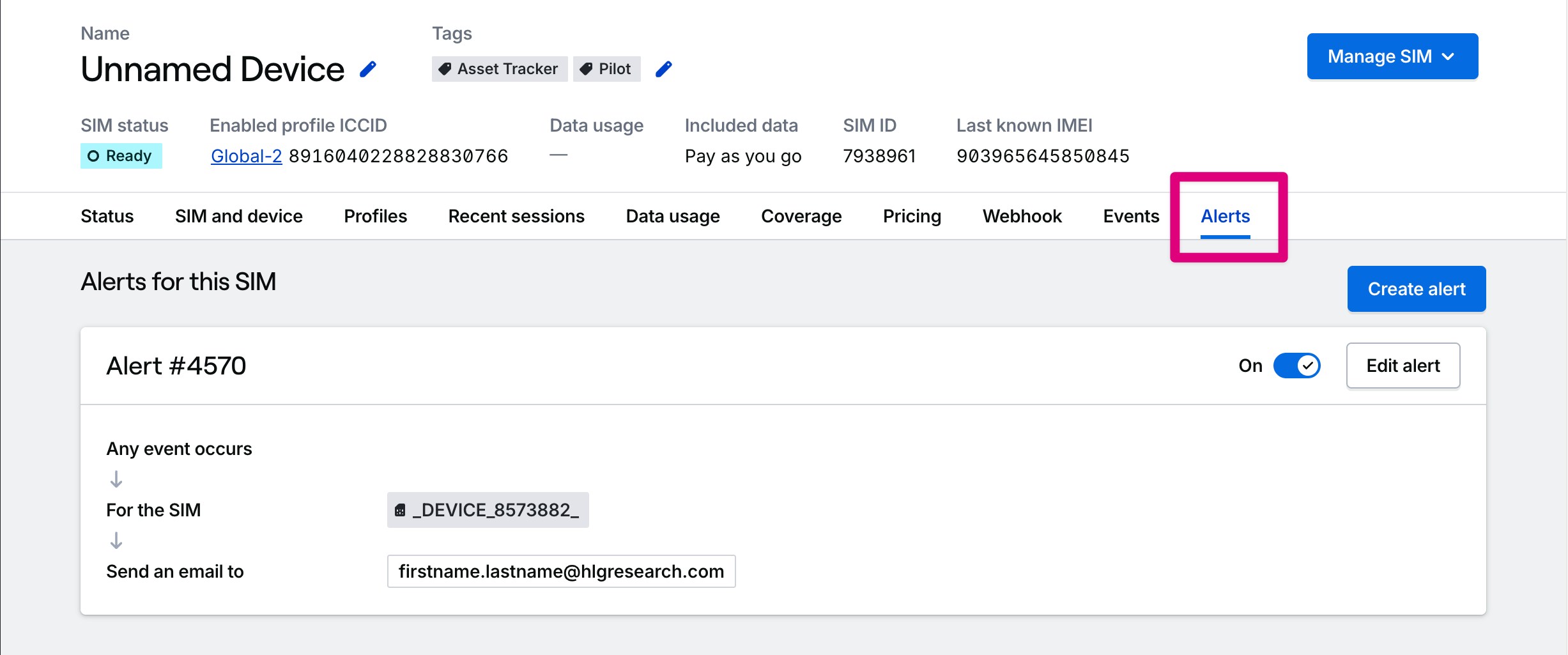 You can find all events that have been created for this SIM on the **Events** tab, including any events that triggered an alert. These events include the message data and contents, event tags, and any errors that occurred during the event, which is useful for troubleshooting and reference before creating a new alert.
Press the **Create alert** button to create a new alert for the SIM you want to monitor. You'll be presented with a list of event types available to subscribe to. Then, you can configure the alert to send notifications via email or webhooks.
## How to manage alerts for your entire fleet
You can find all events that have been created for this SIM on the **Events** tab, including any events that triggered an alert. These events include the message data and contents, event tags, and any errors that occurred during the event, which is useful for troubleshooting and reference before creating a new alert.
Press the **Create alert** button to create a new alert for the SIM you want to monitor. You'll be presented with a list of event types available to subscribe to. Then, you can configure the alert to send notifications via email or webhooks.
## How to manage alerts for your entire fleet
 **Important:** Legacy alert types that are no longer supported are marked with warnings and can only be deleted in the UI. Some deprecated alert types are still functional, but will be removed in a future release.
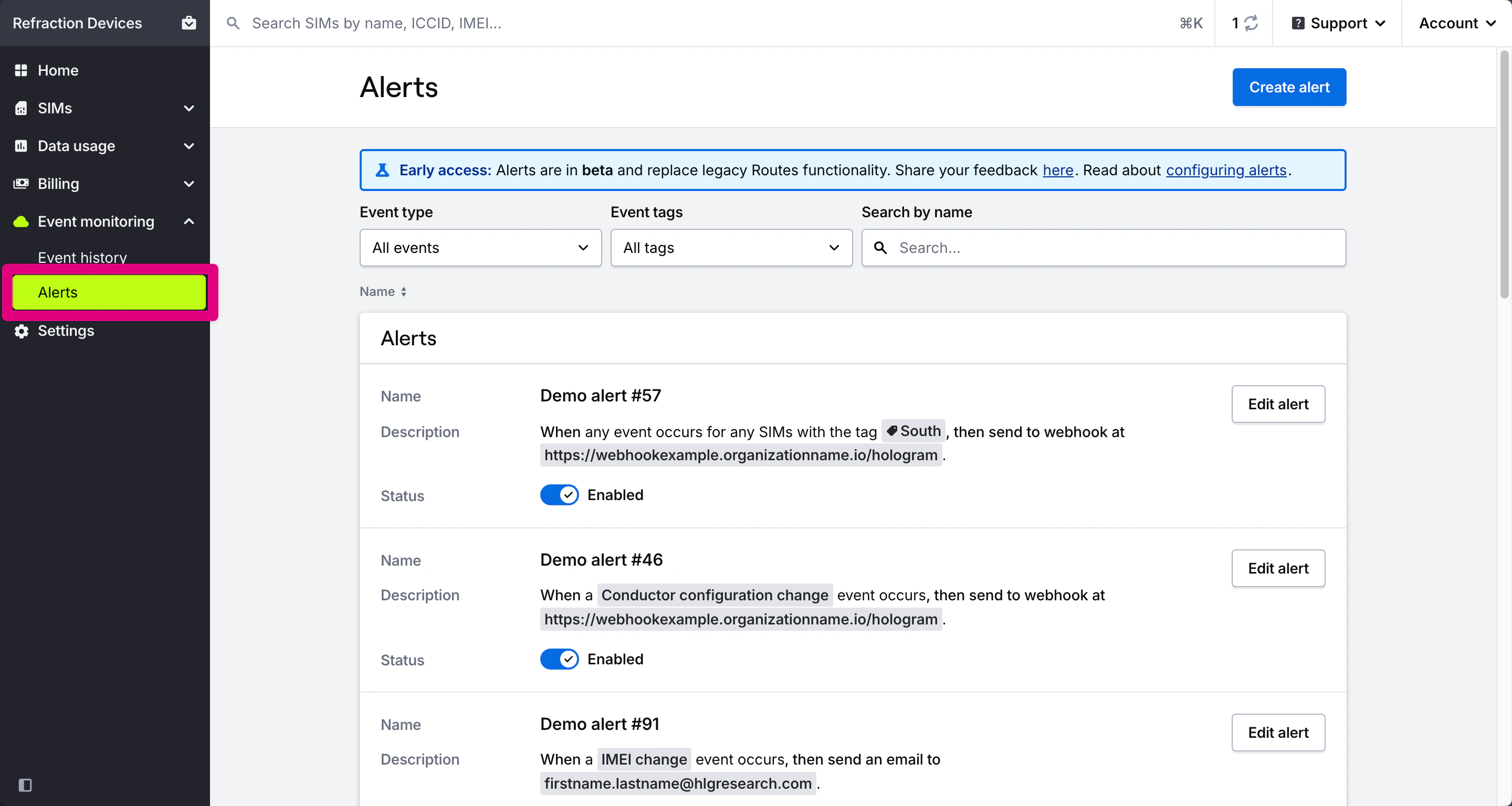
Navigate to the **Event monitoring** section in the main menu and open the **Alerts** page.
On the Alerts page you will find a list of all the Alerts that have been created across your organization. Here, you can add, edit, or delete alerts for your fleet.
## Related actions
Send TCP, UDP, or SMS messages to your devices
Learn how to configure and manage alerts
Fix common alert configuration issues
**Important:** Legacy alert types that are no longer supported are marked with warnings and can only be deleted in the UI. Some deprecated alert types are still functional, but will be removed in a future release.
Navigate to the **Event monitoring** section in the main menu and open the **Alerts** page.
On the Alerts page you will find a list of all the Alerts that have been created across your organization. Here, you can add, edit, or delete alerts for your fleet.
## Related actions
Send TCP, UDP, or SMS messages to your devices
Learn how to configure and manage alerts
Fix common alert configuration issues