> ## Documentation Index
> Fetch the complete documentation index at: https://docs.hologram.io/llms.txt
> Use this file to discover all available pages before exploring further.
# Create a SIM webhook
> Use the Webhook tab to configure a webhook for your SIM to receive device messages and enable inbound messaging through the Hologram dashboard. Webhooks allow you to send authenticated messages to a SIM from external services using the Embedded API.
## How do I create a SIM webhook?
First find the SIM's details page from the **SIMs** pages or using **global search**.
Open the **Webhook** tab for the SIM, and in the **Configure inbound webhook** card, click the **Generate webhook** button.
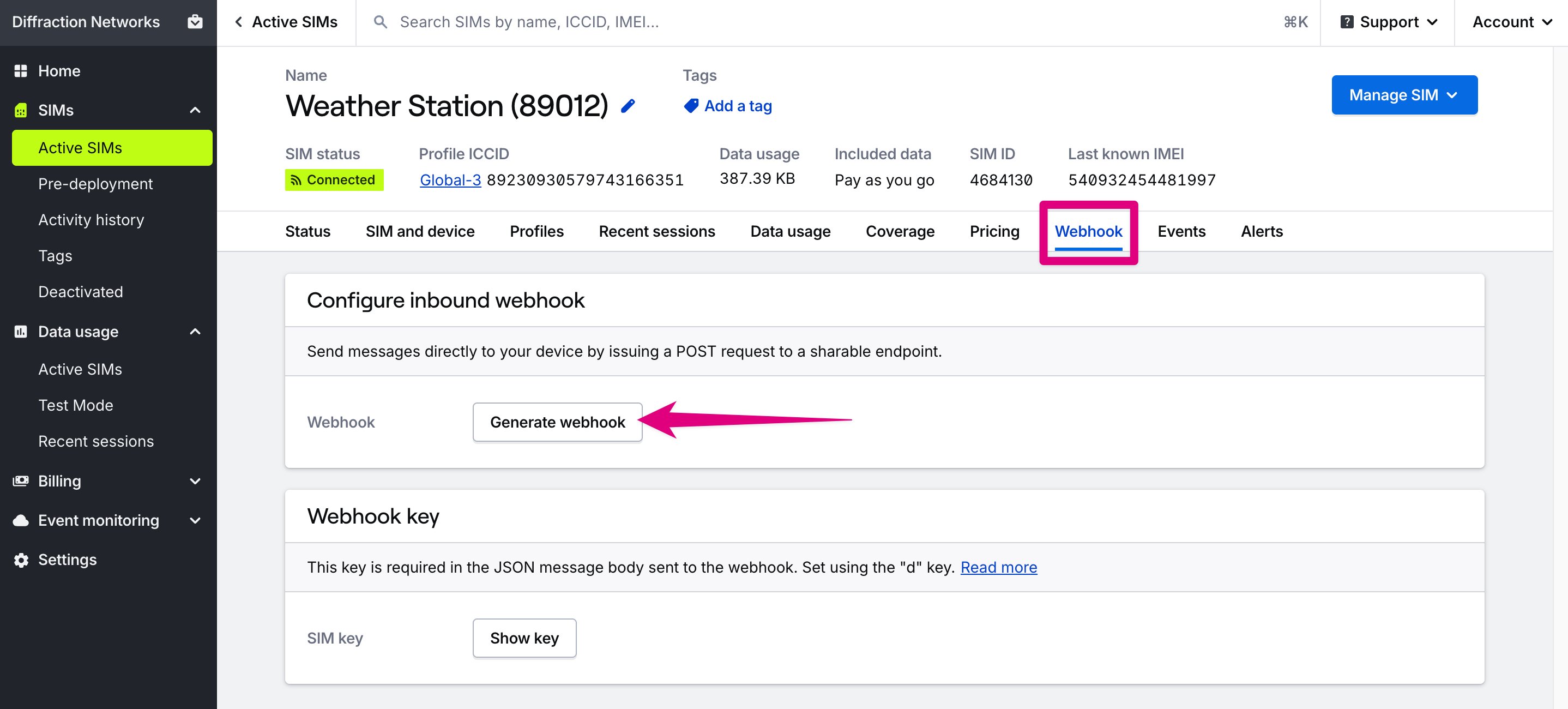 In the card that appears, enter the port number that will receive messages, and the protocol (TCP or UDP).
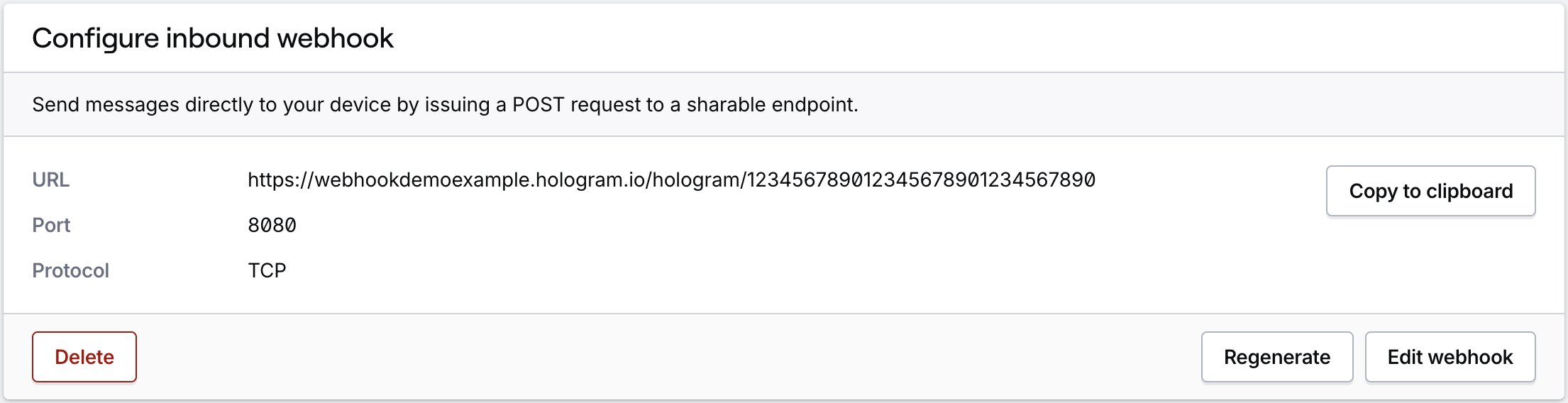
After your webhook is created, you can find the generated URL and port to use listed in the **Configure inbound webhook** card.
In the card that appears, enter the port number that will receive messages, and the protocol (TCP or UDP).
After your webhook is created, you can find the generated URL and port to use listed in the **Configure inbound webhook** card.
 ## Where do I find the SIM's webhook key?
Your Hologram webhook key is a device-specific identifier used to authenticate your SIM. This key is included in the JSON message body when sending messages to the webhook.
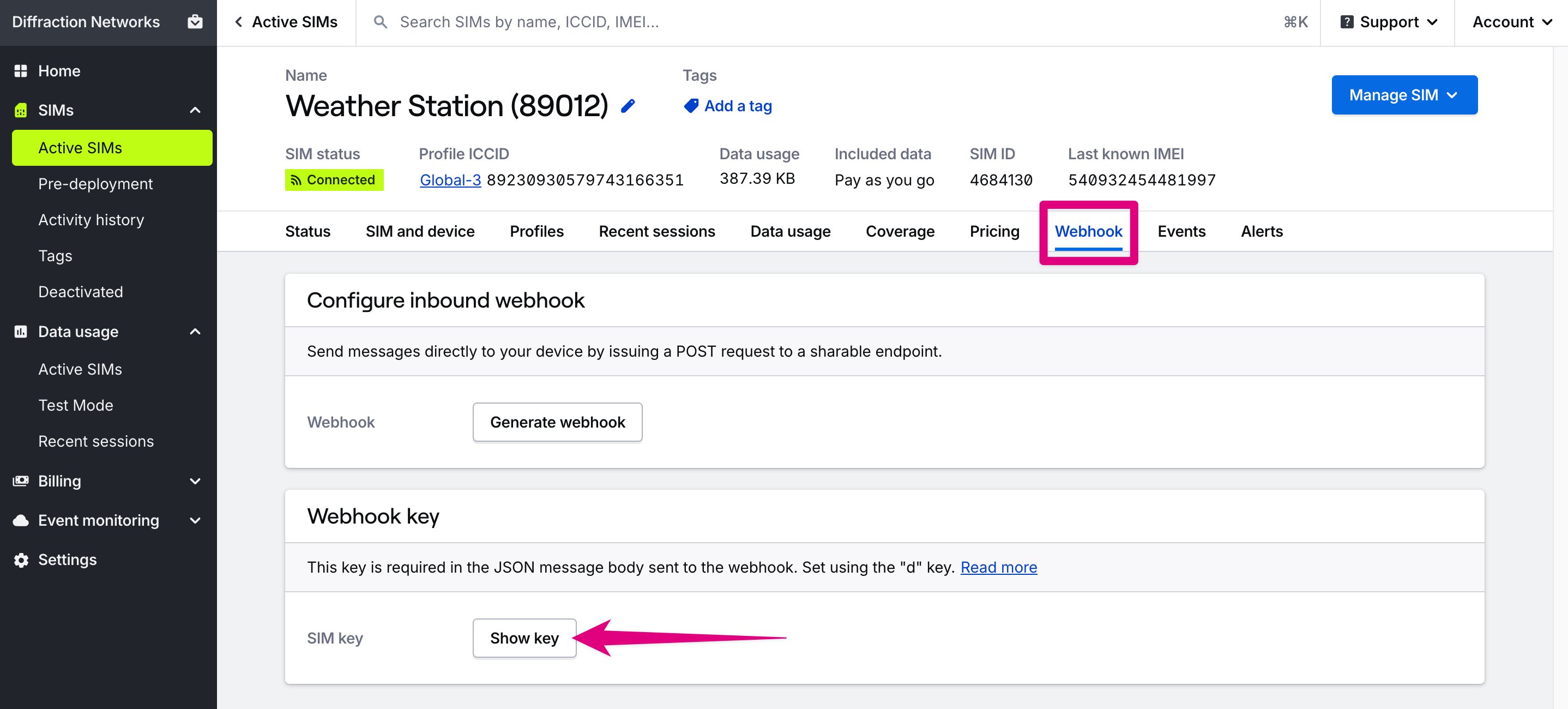
From the SIM's details page, open the **Webhook** tab and click the **Show key** button in the **Webhook key** card.
## Where do I find the SIM's webhook key?
Your Hologram webhook key is a device-specific identifier used to authenticate your SIM. This key is included in the JSON message body when sending messages to the webhook.
From the SIM's details page, open the **Webhook** tab and click the **Show key** button in the **Webhook key** card.
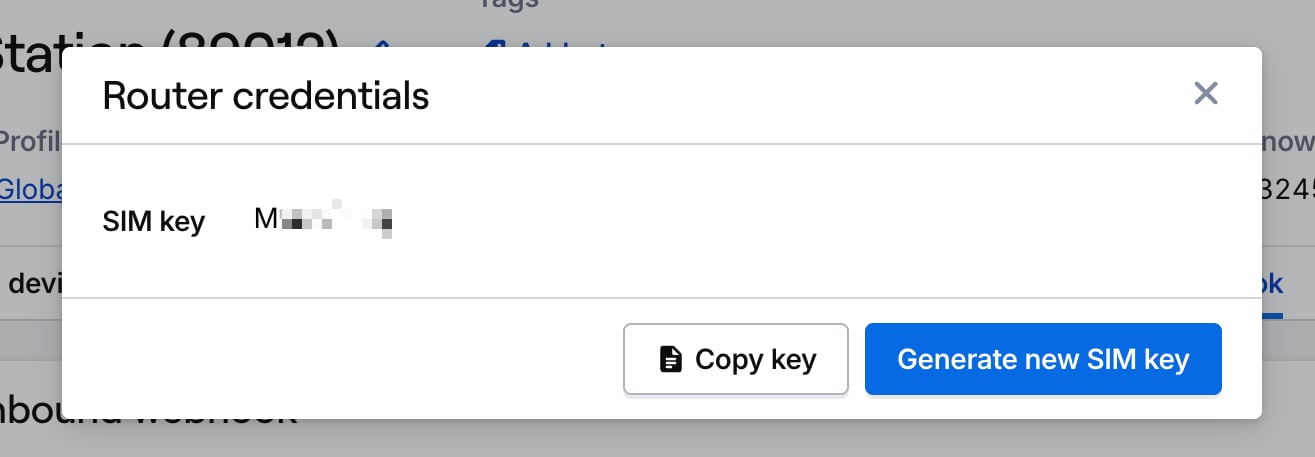
 A modal will appear that displays your webhook key. You can copy the key or generate a new one. Webhook keys do not expire.
 ## How do I send a message to a SIM's webhook?
After generating a webhook and getting your device's webhook key, use the following HTTP request to send a message to your SIM. The body is a JSON object with the following fields:
* `k` or `devicekey` — The device's webhook key
* `d` or `data` — The message data
* `t` or `tags` - The custom tag name
The custom tag name is optional and can be used to add custom tags (topics) to the event.
### HTTP Request
```http theme={null}
POST https://dashboard.hologram.io/api/1/devices/messages/YOUR_DEVICE_ID/UNIQUE_GENERATED_WEBHOOK_ID
```
### Request Body
```json theme={null}
{"k":"DEVICE_KEY","d":"Your message data goes here.","t":"YOUR_CUSTOM_TAG_NAME"}
```
## How to configure webhooks using the REST API
Configure device webhooks
## How do I send a message to a SIM's webhook?
After generating a webhook and getting your device's webhook key, use the following HTTP request to send a message to your SIM. The body is a JSON object with the following fields:
* `k` or `devicekey` — The device's webhook key
* `d` or `data` — The message data
* `t` or `tags` - The custom tag name
The custom tag name is optional and can be used to add custom tags (topics) to the event.
### HTTP Request
```http theme={null}
POST https://dashboard.hologram.io/api/1/devices/messages/YOUR_DEVICE_ID/UNIQUE_GENERATED_WEBHOOK_ID
```
### Request Body
```json theme={null}
{"k":"DEVICE_KEY","d":"Your message data goes here.","t":"YOUR_CUSTOM_TAG_NAME"}
```
## How to configure webhooks using the REST API
Configure device webhooks GET/POST/PUT/DELETE /devices/{"{deviceId}"}/webhook
## Related actions
Send TCP, UDP, or SMS messages to your devices
Fix common webhook configuration issues
**Limited access:** Only Owners, Admins, and Managers can see the **Webhook** tab and configure webhooks. Editors can see whether a SIM has a webhook on the **SIM details** tab.
This documentation is built and hosted on [Mintlify](https://mintlify.com), a developer documentation platform.