> ## Documentation Index
> Fetch the complete documentation index at: https://docs.hologram.io/llms.txt
> Use this file to discover all available pages before exploring further.
# Export SIMs data
> Hologram makes it simple to export your data. While your dashboard is helpful for looking into the behavior of your SIMs, most reporting on SIM and usage data happens by combining data in Excel or your own systems.
## How do I download a list of SIMs?
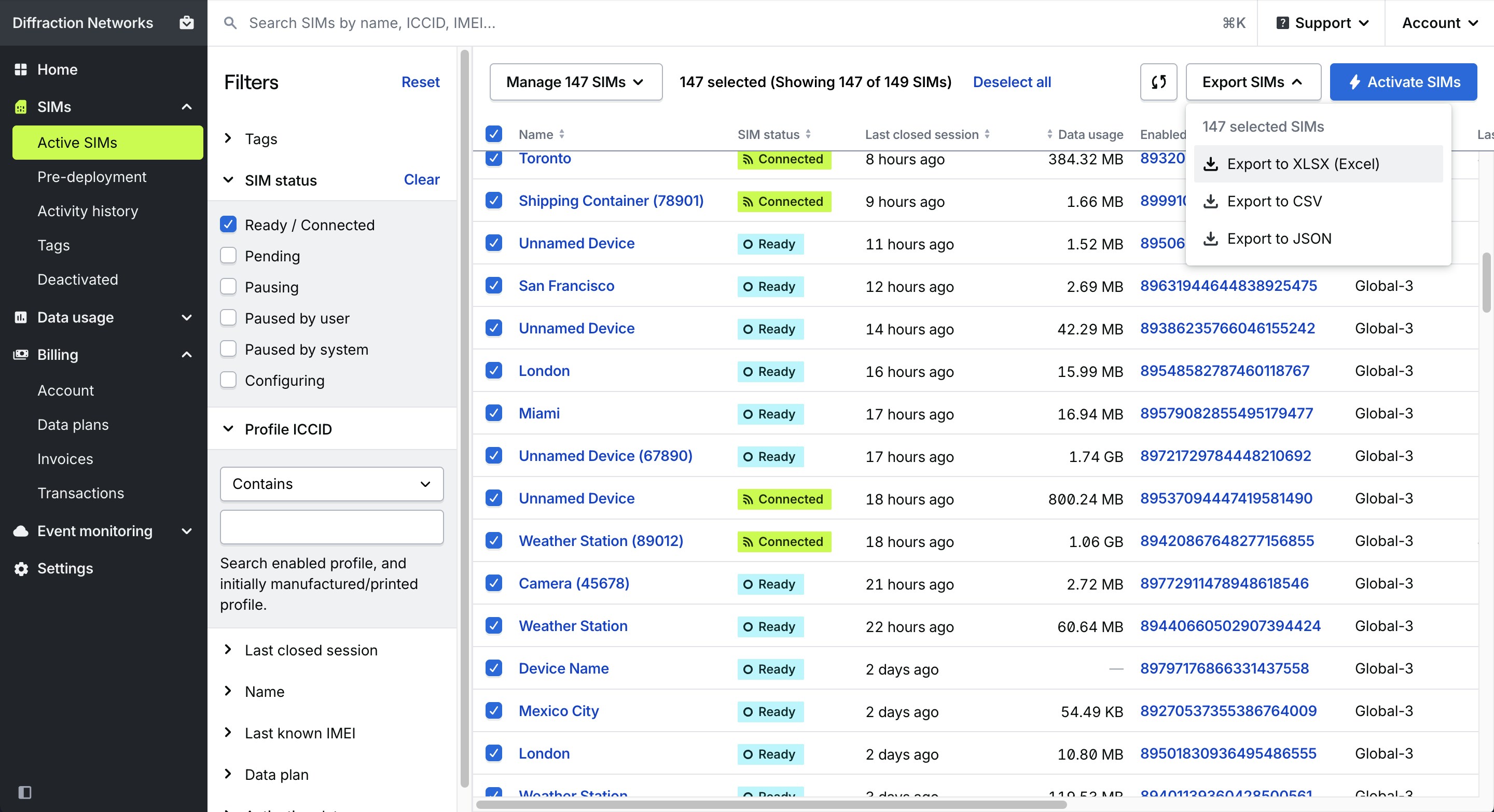
You can export SIM details from the SIMs pages in Excel XLSX, CSV, or JSON formats. We recommend the XLSX format for spreadsheet work as it will not truncate long IDs like ICCIDs.
 ## How to export SIM data
Open the **SIMs** section of your dashboard from the main menu, then open the [Active](/dashboard/sims/sims-active), [Pre-deployment](/dashboard/sims/sims-predeployment), or [Deactivated](/dashboard/sims/sims-deactivated) pages.
Select the specific SIMs you want to export, or select nothing to export data for all SIMs.
Open the **Export** menu in the top-right corner of the page, and choose a file format. The exported file will be downloaded to your device.
You can export additional SIM details and historical data by filtering and exporting [usage reports](/dashboard/usage/usage-overview).
## Exported fields
Your organization's unique ID in the Hologram system.
The name of your organization.
Hologram's unique ID for a SIM card.
Name given to this SIM card.
Hologram's unique ID for the device associated with this SIM.
IMEI of the last known device associated with the SIM, if known and provided by a carrier or network.
The current network state of the SIM (e.g., LIVE, CONNECTED, PAUSED).
The detailed status of this SIM, which helps describe its ability to use data.
ICCID of the currently enabled profile able to use data.
Name of the enabled profile, which generally describes available carrier coverage.
Unique ID of the enabled profile link.
Date and time in UTC of the most recent closed session for the SIM.
Unique ID of the currently active data plan.
Name of the currently active data plan which determines a SIM's coverage and cost.
Data usage for the SIM's current billing period in bytes.
Names of tags associated with this SIM, separated by commas.
IDs of tags associated with this SIM, separated by commas.
Date and time in UTC that this SIM was activated and was able to begin using data.
## How to export SIM data
Open the **SIMs** section of your dashboard from the main menu, then open the [Active](/dashboard/sims/sims-active), [Pre-deployment](/dashboard/sims/sims-predeployment), or [Deactivated](/dashboard/sims/sims-deactivated) pages.
Select the specific SIMs you want to export, or select nothing to export data for all SIMs.
Open the **Export** menu in the top-right corner of the page, and choose a file format. The exported file will be downloaded to your device.
You can export additional SIM details and historical data by filtering and exporting [usage reports](/dashboard/usage/usage-overview).
## Exported fields
Your organization's unique ID in the Hologram system.
The name of your organization.
Hologram's unique ID for a SIM card.
Name given to this SIM card.
Hologram's unique ID for the device associated with this SIM.
IMEI of the last known device associated with the SIM, if known and provided by a carrier or network.
The current network state of the SIM (e.g., LIVE, CONNECTED, PAUSED).
The detailed status of this SIM, which helps describe its ability to use data.
ICCID of the currently enabled profile able to use data.
Name of the enabled profile, which generally describes available carrier coverage.
Unique ID of the enabled profile link.
Date and time in UTC of the most recent closed session for the SIM.
Unique ID of the currently active data plan.
Name of the currently active data plan which determines a SIM's coverage and cost.
Data usage for the SIM's current billing period in bytes.
Names of tags associated with this SIM, separated by commas.
IDs of tags associated with this SIM, separated by commas.
Date and time in UTC that this SIM was activated and was able to begin using data.