> ## Documentation Index
> Fetch the complete documentation index at: https://docs.hologram.io/llms.txt
> Use this file to discover all available pages before exploring further.
# Send and receive SMS via mmcli
> Learn how to test end-to-end SMS on a Linux device with a Hologram SIM using ModemManager (`mmcli`) on a Linux device such as a Raspberry Pi. Send a message to your device, confirm the device received it, send a reply, and verify delivery.
## Requirements
* A Linux device with a cellular modem and an active Hologram SIM.
* ModemManager installed, which provides the `mmcli` command.
* Access to your [Hologram dashboard](https://dashboard.hologram.io) for the SIM you are testing.
* Permission to run `sudo` on the device, which is required to create, send, and delete messages.
## Verify the modem is connected
Before testing SMS, confirm the modem is attached and connected on LTE:
```bash theme={null}
mmcli -m any
```
Check the following fields in the output:
* **Status > state**: should be `connected` or `enabled`
* **Status > access tech**: should be `lte` (in regions that still support 2G or 3G, `gsm-umts` or others may also work)
* **3GPP > operator name**: should be `Hologram` or the actual mobile network operator
* **3GPP > registration**: should be `roaming` or `home`
* **3GPP EPS > ue mode of operation**: should be `csps-2` (combined CS/PS, which is required for SMS)
* **3GPP > packet service state**: should be `attached`
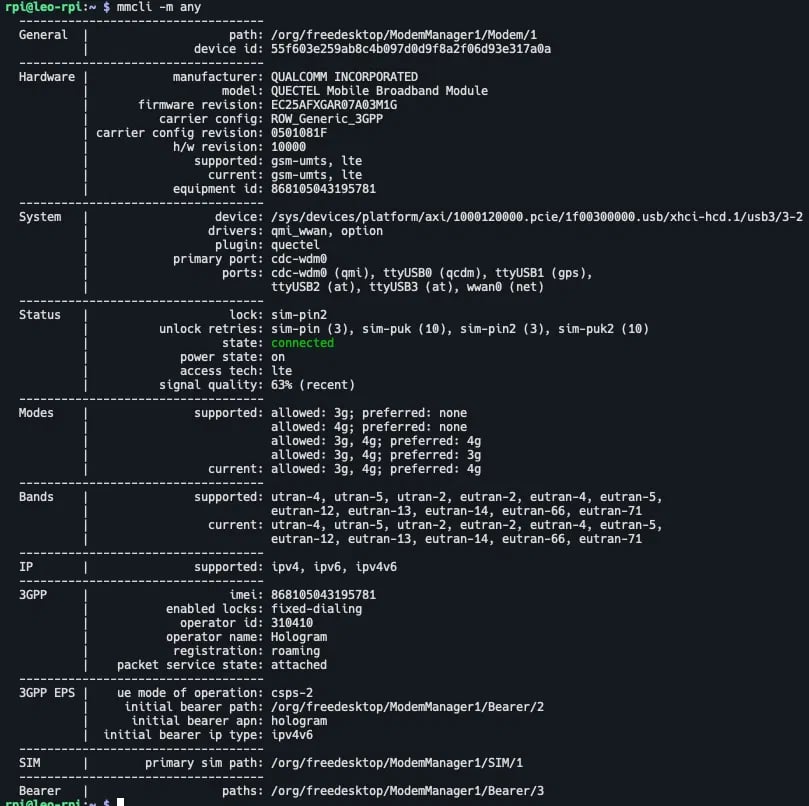 If `ue mode of operation` is not `csps-2`, SMS may not work. Check your modem's UE mode configuration.
## Send an SMS message to the device from your dashboard
In your dashboard, navigate to the SIM and use the **Manage SIM** menu to **[Send message to SIM](/dashboard/sim-actions/send-messages-to-sims)** and send a test message to the SIM.
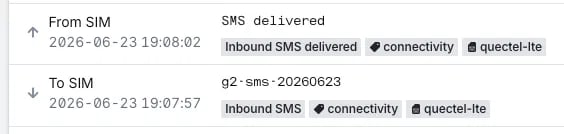
After sending, open the **[Events tab](/dashboard/sims/sim-details-events-tab)** for the SIM to view event history. You should see two events:
1. The message sent to the device, "**To SIM**". In the example below, the message body is `g2-sms-20260623` with an event type of **[Inbound SMS](/guides/cloud-and-tools/event-types-and-tags#outbound-sms)** (`_SMS_DT_` event tag).
2. A delivery confirmation sent back to Hologram, "**From SIM**". In the example below, the message body is `SMS` with an event type of **[Inbound SMS delivered](/guides/cloud-and-tools/event-types-and-tags#sms-delivered)** (`_SMS_DT_DELIVERED_` event tag).
If `ue mode of operation` is not `csps-2`, SMS may not work. Check your modem's UE mode configuration.
## Send an SMS message to the device from your dashboard
In your dashboard, navigate to the SIM and use the **Manage SIM** menu to **[Send message to SIM](/dashboard/sim-actions/send-messages-to-sims)** and send a test message to the SIM.
After sending, open the **[Events tab](/dashboard/sims/sim-details-events-tab)** for the SIM to view event history. You should see two events:
1. The message sent to the device, "**To SIM**". In the example below, the message body is `g2-sms-20260623` with an event type of **[Inbound SMS](/guides/cloud-and-tools/event-types-and-tags#outbound-sms)** (`_SMS_DT_` event tag).
2. A delivery confirmation sent back to Hologram, "**From SIM**". In the example below, the message body is `SMS` with an event type of **[Inbound SMS delivered](/guides/cloud-and-tools/event-types-and-tags#sms-delivered)** (`_SMS_DT_DELIVERED_` event tag).
 ## Verify the message was received by the device
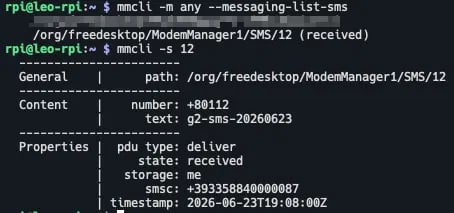
List the messages stored on the modem:
```bash theme={null}
mmcli -m any --messaging-list-sms
```
Inspect a received message by its index:
```bash theme={null}
mmcli -s 12
```
Messages from Hologram arrive from the number assigned to the **Hologram short or long code**. The `text` field contains the message body you entered.
## Verify the message was received by the device
List the messages stored on the modem:
```bash theme={null}
mmcli -m any --messaging-list-sms
```
Inspect a received message by its index:
```bash theme={null}
mmcli -s 12
```
Messages from Hologram arrive from the number assigned to the **Hologram short or long code**. The `text` field contains the message body you entered.
 ## Create and send an SMS message from the device
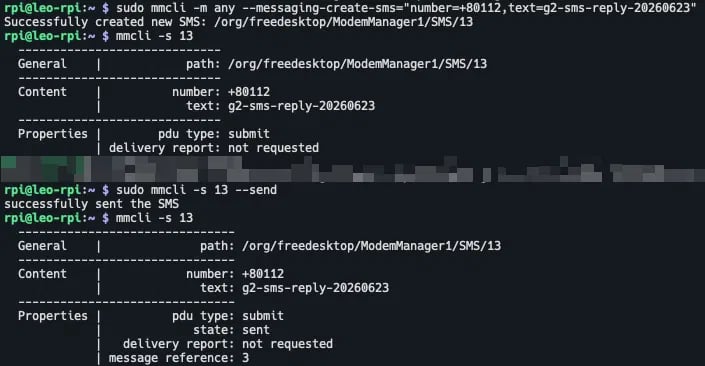
**Important:** The destination must be a valid Hologram short or long code, not an arbitrary number. **Use the number from the received SMS**, visible in the `number` field of `mmcli -s `.
```bash theme={null}
sudo mmcli -m any --messaging-create-sms="number=+80112,text=g2-sms-reply-20260623"
```
Verify the message was created, send it, then confirm it was sent:
```bash theme={null}
mmcli -s 13
sudo mmcli -s 13 --send
mmcli -s 13
```
After sending, `state` changes from `submit` to `sent` and a `message reference` number is present.
## Create and send an SMS message from the device
**Important:** The destination must be a valid Hologram short or long code, not an arbitrary number. **Use the number from the received SMS**, visible in the `number` field of `mmcli -s `.
```bash theme={null}
sudo mmcli -m any --messaging-create-sms="number=+80112,text=g2-sms-reply-20260623"
```
Verify the message was created, send it, then confirm it was sent:
```bash theme={null}
mmcli -s 13
sudo mmcli -s 13 --send
mmcli -s 13
```
After sending, `state` changes from `submit` to `sent` and a `message reference` number is present.
 ## Verify the message was received by the SIM
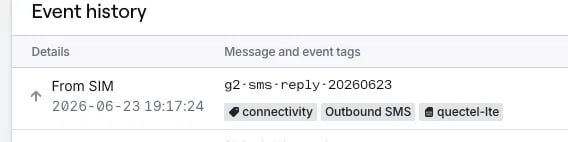
In your dashboard, open the **[Events tab](/dashboard/sims/sim-details-events-tab)** for the SIM to view event history. You should see a new event tagged **[Outbound SMS](/guides/cloud-and-tools/event-types-and-tags#outbound-sms)** (`_SMS_DO_` event tag) with the message body matching what you sent.
## Verify the message was received by the SIM
In your dashboard, open the **[Events tab](/dashboard/sims/sim-details-events-tab)** for the SIM to view event history. You should see a new event tagged **[Outbound SMS](/guides/cloud-and-tools/event-types-and-tags#outbound-sms)** (`_SMS_DO_` event tag) with the message body matching what you sent.
 ## Delete messages to free up modem memory (optional)
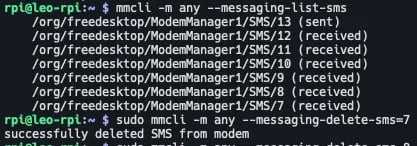
List the current messages:
```bash theme={null}
mmcli -m any --messaging-list-sms
```
Delete a specific message by its index:
```bash theme={null}
sudo mmcli -m any --messaging-delete-sms=7
```
## Delete messages to free up modem memory (optional)
List the current messages:
```bash theme={null}
mmcli -m any --messaging-list-sms
```
Delete a specific message by its index:
```bash theme={null}
sudo mmcli -m any --messaging-delete-sms=7
```
 To delete multiple messages in a loop:
```bash theme={null}
for i in 7 8 9 10 11 12 13; do
sudo mmcli -m any --messaging-delete-sms=$i
done
```
**Danger:** Do not use `mmcli -s --delete`. This syntax is broken in newer versions of ModemManager and returns `error: no actions specified`. Always use `--messaging-delete-sms=` on the modem (`-m`) instead.
To delete multiple messages in a loop:
```bash theme={null}
for i in 7 8 9 10 11 12 13; do
sudo mmcli -m any --messaging-delete-sms=$i
done
```
**Danger:** Do not use `mmcli -s --delete`. This syntax is broken in newer versions of ModemManager and returns `error: no actions specified`. Always use `--messaging-delete-sms=` on the modem (`-m`) instead.