> ## Documentation Index
> Fetch the complete documentation index at: https://docs.hologram.io/llms.txt
> Use this file to discover all available pages before exploring further.
# What are fallback events for Hyper SIMs with Outage Protection?
> Hologram's Hyper SIMs with Outage Protection can switch mobile cores automatically in the case an installed profile loses connectivity, protecting you from downtime and outages. When a SIM switches connectivity profiles automatically, we call this a **fallback event**.
**Limited access:** Prevent unexpected outages with Outage Protection and get contractually guaranteed reliability by contacting our [sales team](https://www.hologram.io/contact-sales?utm_source=docs\&utm_medium=website\&utm_content=outage_protection_callout).
## How do I identify fallback events?
Only one connectivity profile ("mobile core") on a SIM can actively use data and connect to networks. When profiles on a SIM change either due to over-the-air eUICC updates or fallback events, the active ICCID changes. You can identify profile changes by looking for ICCID changes between sessions. The **enabled profile ICCID** listed across pages in your dashboard the ICCID of the profile currently enabled and able to use data.
## Where can I find a list of all fallback events for a SIM?
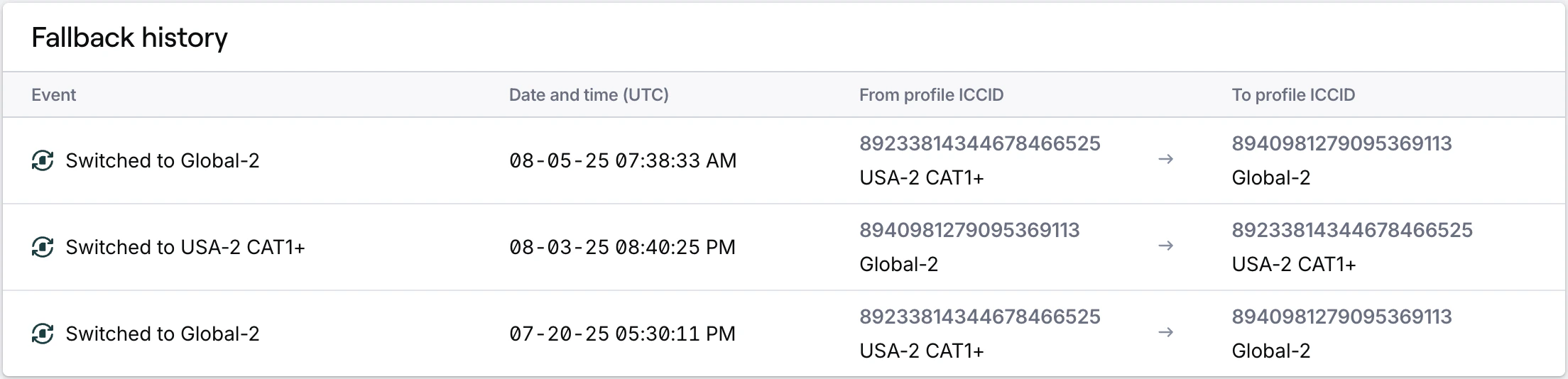
1. To find details about installed profiles for your SIM and a full history of fallback events, open a SIM's details page from the **SIMs** section in the main menu of your dashboard or by searching for the SIM.
2. Navigate to the **Profiles tab** where you can see the currently installed profiles on the SIM and information about how your SIM will connect through multiple profiles.
3. The **Fallback history card** at the bottom of the page will list all fallback events for the SIM.
 ### Identify a fallback event
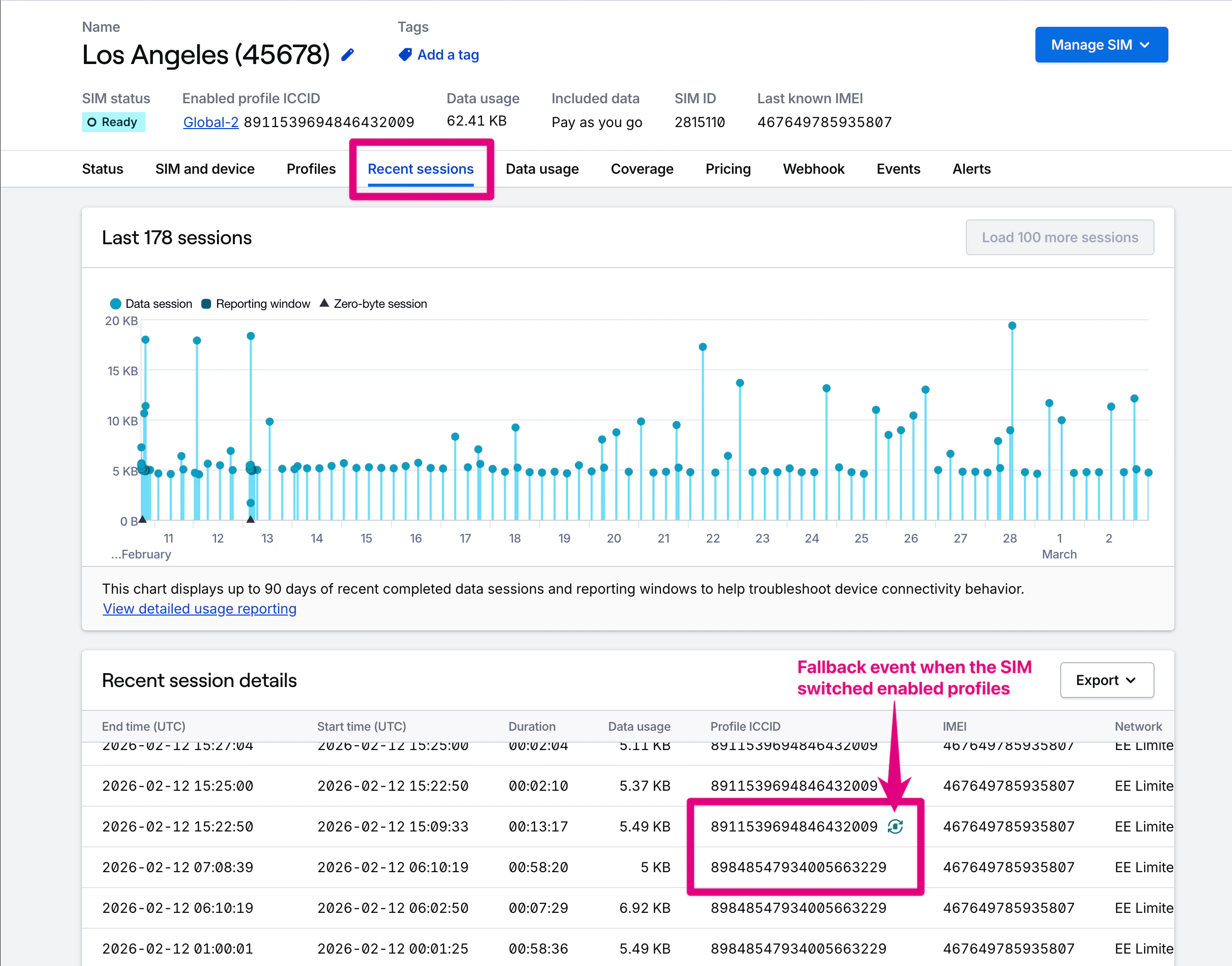
1. When viewing session details for a SIM, look for a sequence of sessions in which the ICCID changes.
2. In the **Recent Sessions tab** for a single SIM, individual fallback events are called out with an indicator and on the row next to the session's profile ICCID.
### Identify a fallback event
1. When viewing session details for a SIM, look for a sequence of sessions in which the ICCID changes.
2. In the **Recent Sessions tab** for a single SIM, individual fallback events are called out with an indicator and on the row next to the session's profile ICCID.
 **Note:** This functionality was formerly called "fallback for Dual-Core Capable SIMs". Hologram's Hyper SIMs support fallback natively when two or more profiles are installed, which we now call "Multi-Core".