> ## Documentation Index
> Fetch the complete documentation index at: https://docs.hologram.io/llms.txt
> Use this file to discover all available pages before exploring further.
# No permissions to perform operation error
> Resolve permission errors by updating your collaborator role in the organization.
If you are getting a `No permissions to perform operation` error it means that your access level on the [organization's collaborator](/dashboard/orgs-and-users/user-roles) settings is not high enough to complete said action. To fix this you need to contact the organization **Owner** or an **Admin** and ask them to upgrade your collaborator access.
## Collaborator access levels
Collaborators may be granted one of three access levels in an organization:
* **Admin**: Full access. Same permissions as Manager, plus the ability to change billing settings
* **Manager**: Same as Editor, plus managing device settings that could affect costs (e.g. changing data plans).
* **Editor**: View devices and cloud messages, manage device settings that don't affect costs, manage app integrations.
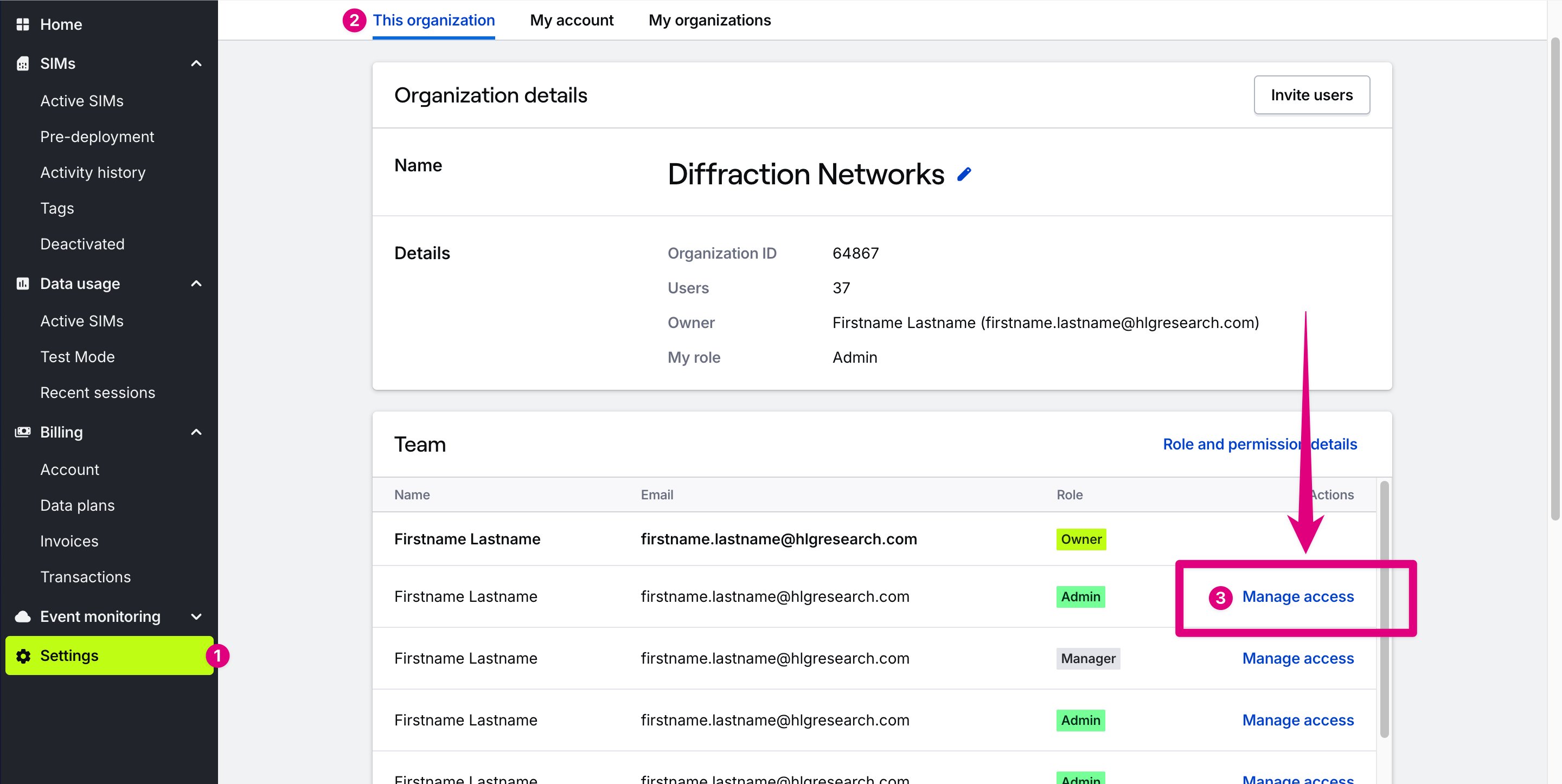
To change a user's access level, go to the **Settings** section in the main menu, open the **This organization** tab, and modify the user's access in the **Team** card.
 ## Related guides
Add teammates to your organization
Manage team members with access to collaborate in an organization
## Related guides
Add teammates to your organization
Manage team members with access to collaborate in an organization