

Limited functionality: This functionality is limited to certain legacy accounts. For more information, please reach out to our sales team.
Set up a notification using Routes
-
Create a new Route by going to the Routes section of the Dashboard and hitting the + Create Route button

-
Give your route a name and select the topic you want to subscribe to. The two options related to IMEI changes are:
_IMEI_CHANGE_which triggers with any device change_IMEI_TAC_CHANGE_which only triggers when a SIM is placed in a device with a different model of modem. For example, this would trigger when a SIM is placed in a completely different device, but would not trigger when placed in a device that is the same make and model as the old one. You can read more about the different tags here.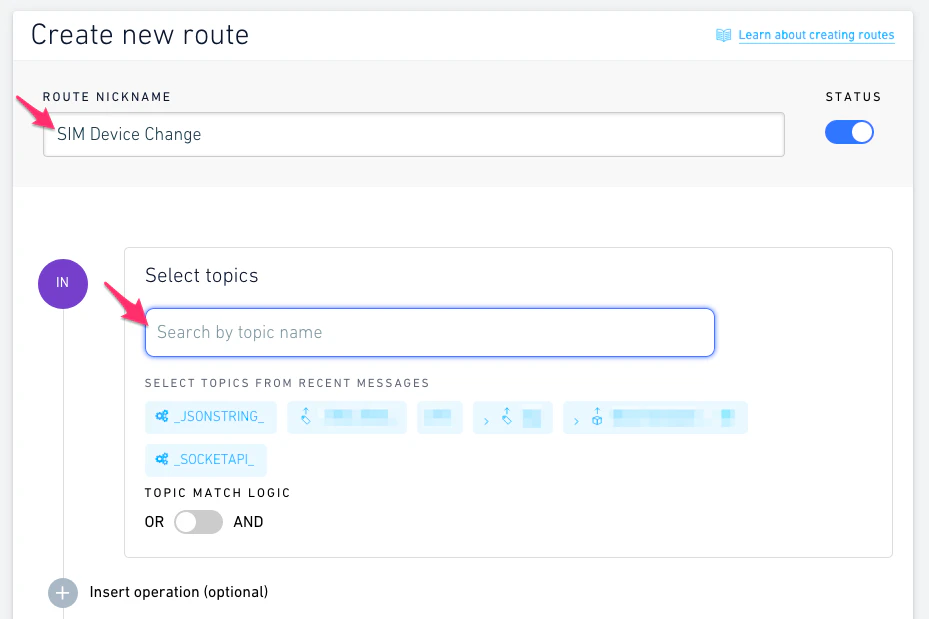
-
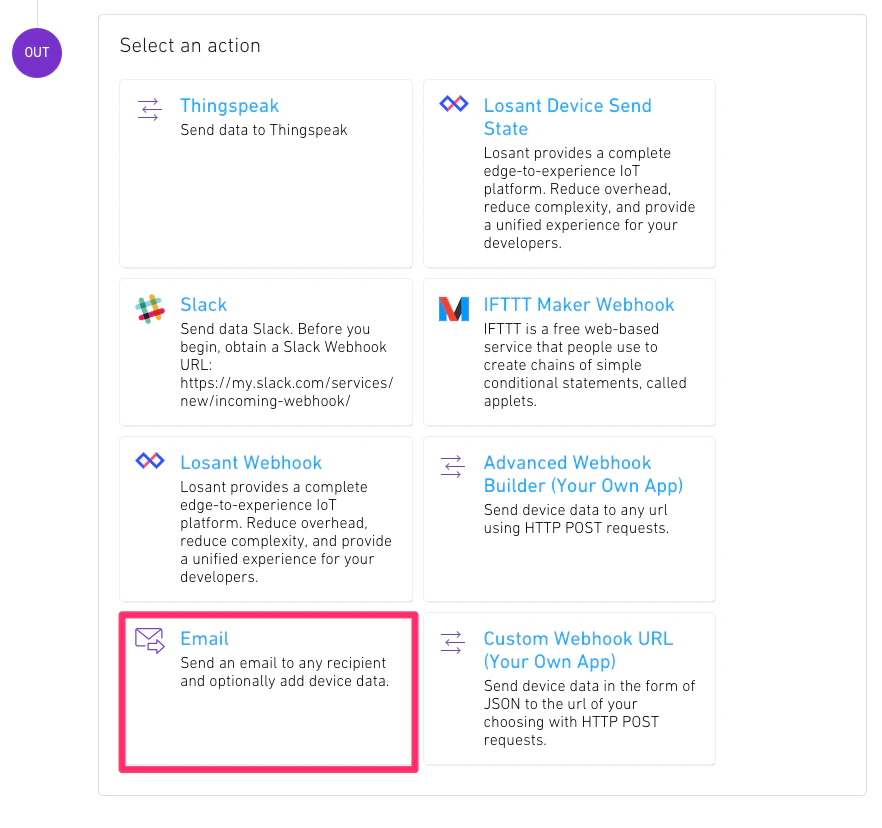
Next, choose the route type. In this example we will use the email route, but you could use the Slack route for notifications or one of the Webhook routes if you want to delivery the data directly into your own app.
-
Selecting email will transition the page to the email details section. Fill out the Email Recipients section with the emails addresses you want to receive the email and the Subject that you want the email to have. The Email Message section will be pre-filled with the full payload of the IMEI detection message. We recommend leaving that as is, but if you prefer to only get certain pieces of information you can by following the instructions here.
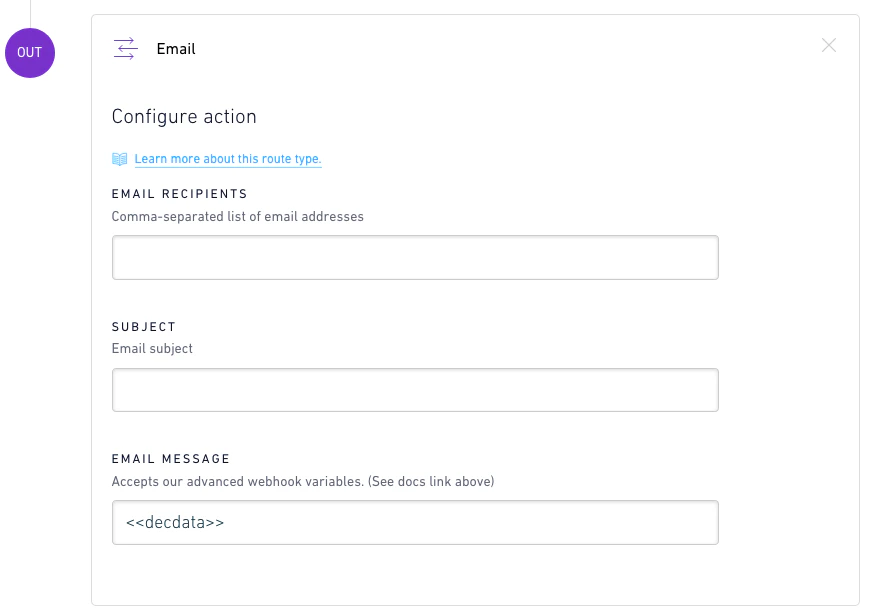
- Press the Add route button to finish your route.