

Limited access: Prevent unexpected outages with Outage Protection™ and get contractually guaranteed reliability by contacting our sales team.
How do I identify fallback events?
Only one connectivity profile (“mobile core”) on a SIM can actively use data and connect to networks. When profiles on a SIM change either due to over-the-air eUICC updates or fallback events, the active ICCID changes. You can identify profile changes by looking for ICCID changes between sessions. The enabled profile ICCID listed across pages in your dashboard the ICCID of the profile currently enabled and able to use data.Where can I find a list of all fallback events for a SIM?
- To find details about installed profiles for your SIM and a full history of fallback events, open a SIM’s details page from the SIMs section in the main menu of your dashboard or by searching for the SIM.
- Navigate to the Profiles tab where you can see the currently installed profiles on the SIM and information about how your SIM will connect through multiple profiles.
-
The Fallback history card at the bottom of the page will list all fallback events for the SIM.
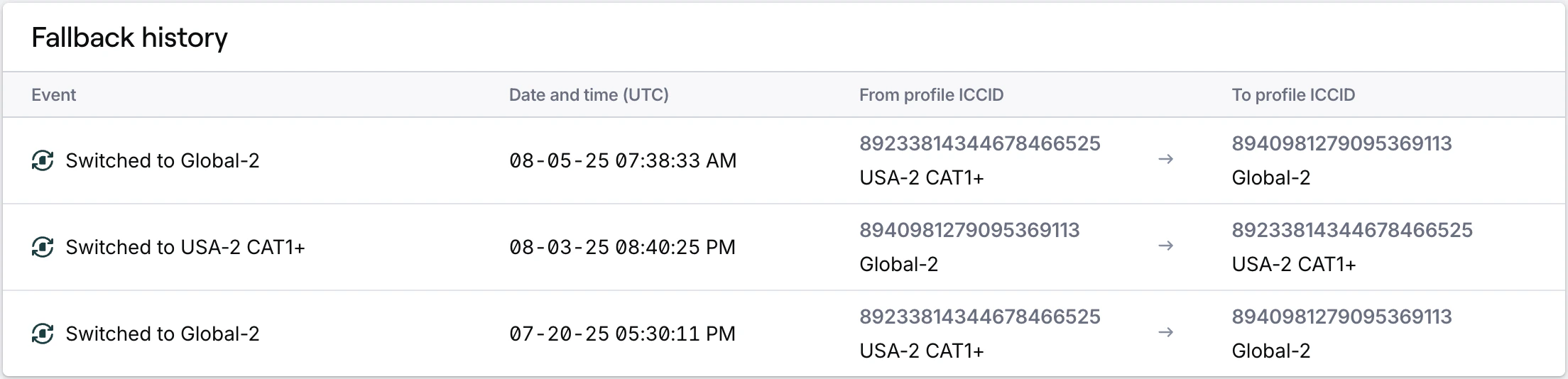
Identify a fallback event
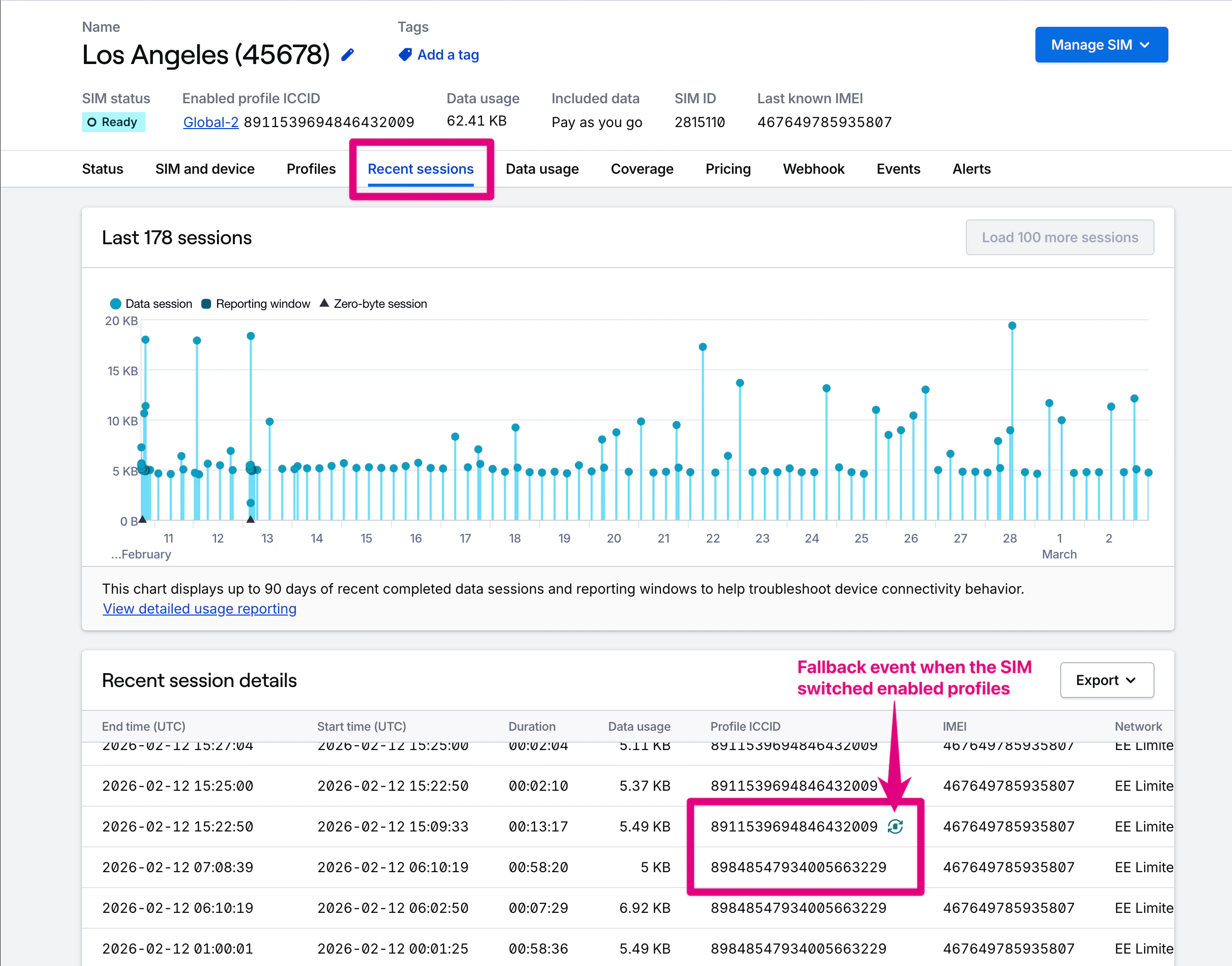
- When viewing session details for a SIM, look for a sequence of sessions in which the ICCID changes.
-
In the Recent Sessions tab for a single SIM, individual fallback events are called out with an indicator and on the row next to the session’s profile ICCID.
Note: This functionality was formerly called “fallback for Dual-Core Capable SIMs”. Hologram’s Hyper SIMs support fallback natively when two or more profiles are installed, which we now call “Multi-Core”.