

Requirements
- A Raspberry Pi, with a mouse, keyboard, and monitor for the initial setup.
- A cellular modem with an activated Hologram SIM and a data plan. If you have not activated your SIM yet, see Activate your first SIMs.
- NetworkManager (
nmcli), pre-installed starting on Debian 12 (bookworm). - ModemManager (
mmcli), pre-installed starting on Debian 12 (bookworm).
Connect the Raspberry Pi
1
Verify the required packages are installed
Confirm that both Both are installed by default on Debian 12 and later. If either is missing, install it:
mmcli and nmcli are available:2
Set up WiFi or Ethernet first (older OS versions only)
On Debian 11-based and older images, set up your network connection with NetworkManager before continuing, so you do not lose access to the device. Newer images do this automatically, and this step is not needed if you use Ethernet.
3
Connect the modem to the Raspberry Pi
Insert your activated SIM into the modem, then connect the cellular modem to your Raspberry Pi via USB.
4
Confirm the modem is detected
Verify that the Raspberry Pi detects the modem:
5
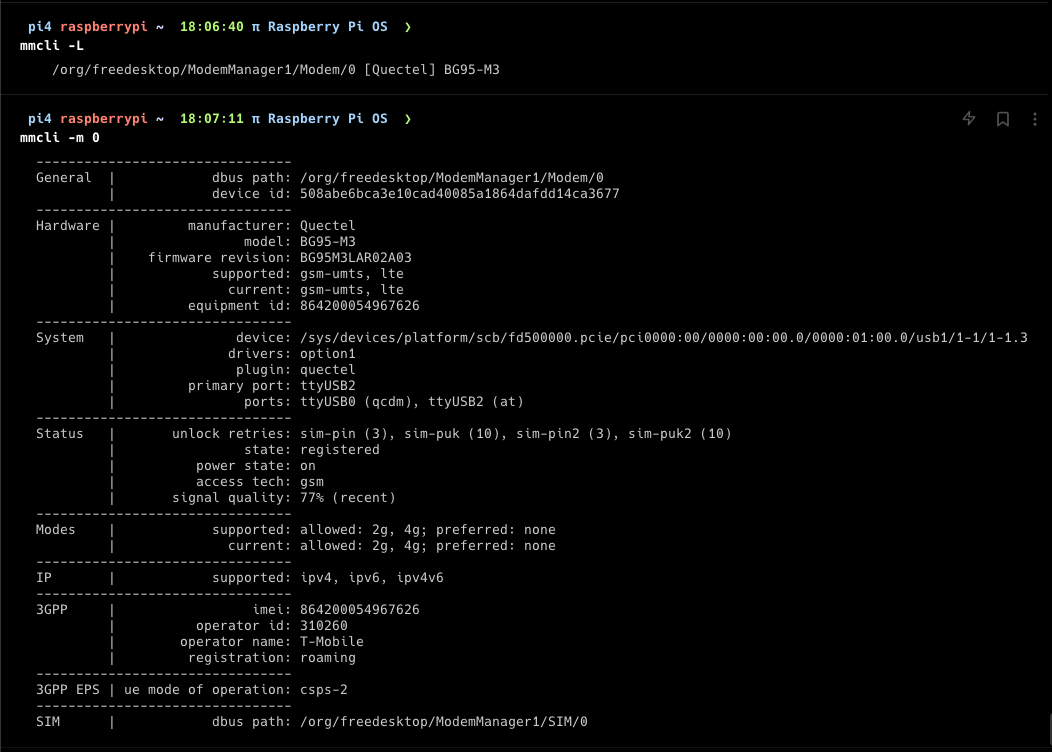
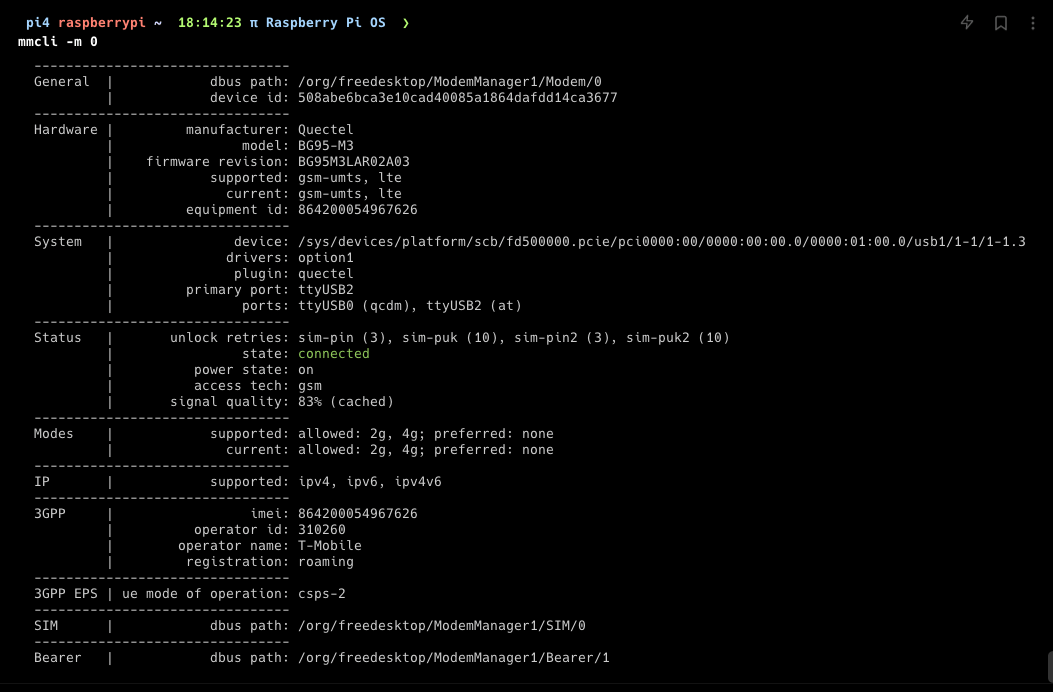
Connect to the network with ModemManager
6
Add the connection to NetworkManager
Adding the connection to NetworkManager sets up the correct IP routes.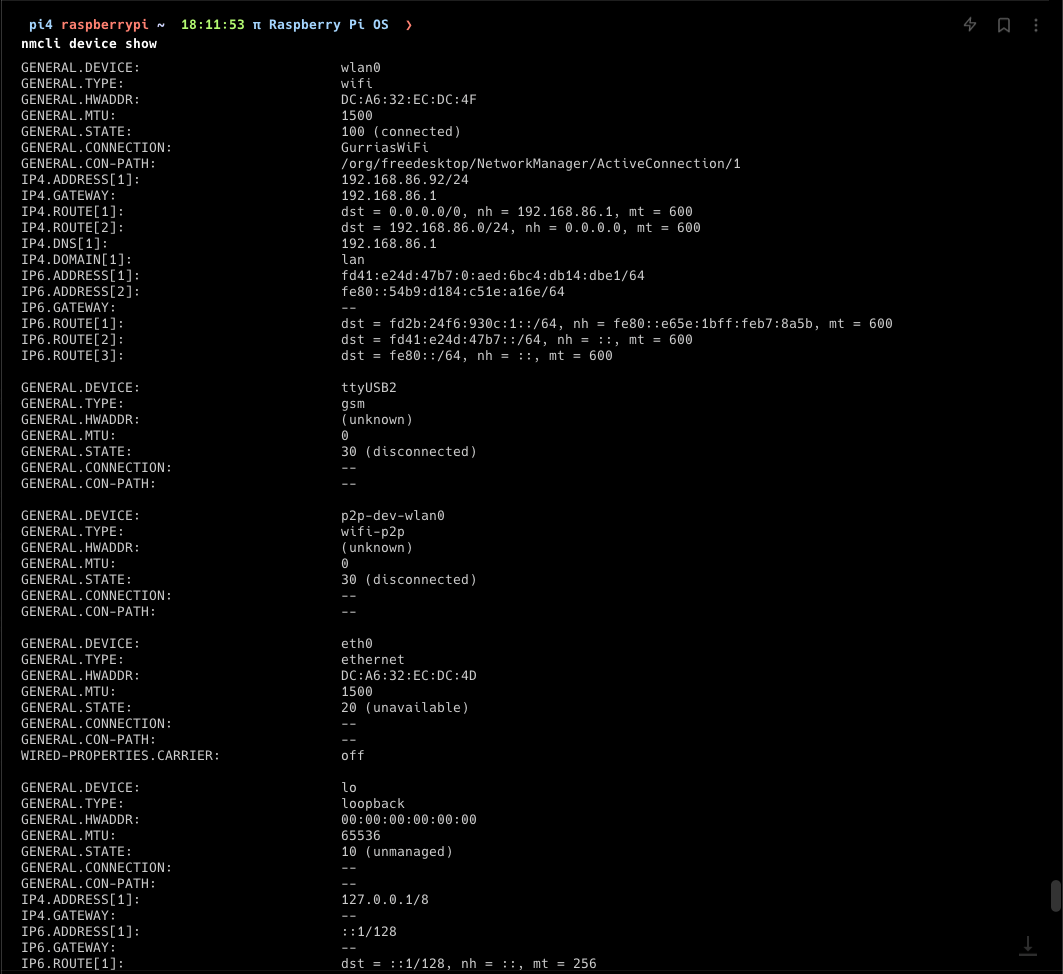

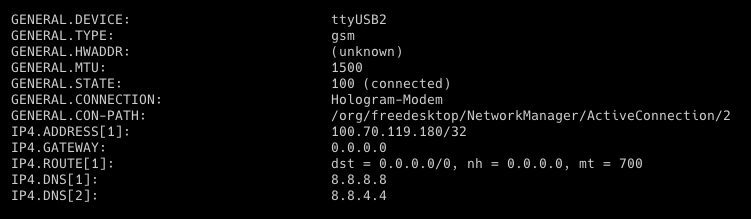
<primary-port>— theGENERAL.DEVICEvalue from the previous command.<your-connection-name>— any name you choose for the connection.<your-apn>— the APN for your SIM.
Note: The
type gsm connection works well with Verizon SIMs too, as long as your modem is Verizon certified and you use the correct Verizon profile type (Cat-1+ vs. Cat-M).7
Confirm the modem connection is active
Confirm the modem connection appears in NetworkManager on the correct 
TYPE and DEVICE, and shows as connected (green):8
Verify the IP interface
Confirm your IP table has the appropriate 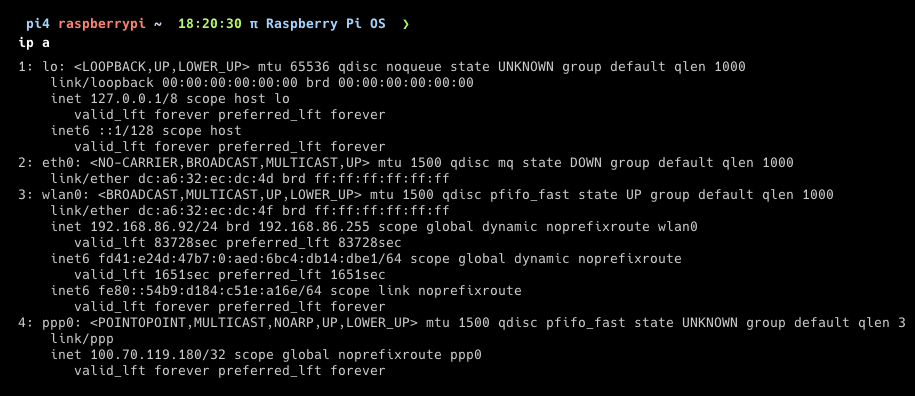
wwan0 or ppp0 interface, including the SIM’s IP address:9
Run a ping test
Test the new connection by pinging 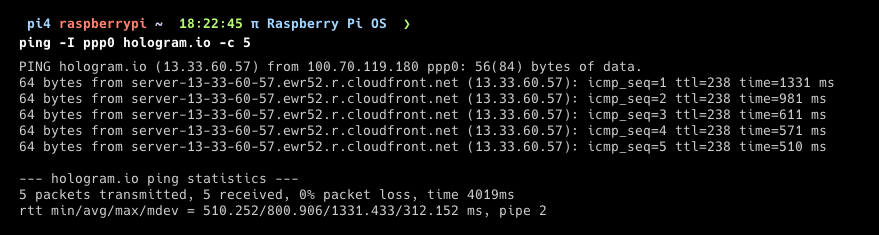
hologram.io. Replace <your-ip-interface> with the appropriate interface (wwan0 or ppp0):10
(Optional) Confirm internet access over cellular
Turn off the Raspberry Pi’s WiFi and open a site such as
https://www.google.com in a browser.Troubleshooting
General troubleshooting commands
Use the built-in help for each tool to explore available options:Add IP routes manually
If these or other tools are giving you issues, the device most likely does not have the correct routes configured. Add them manually with the commands below. You need to re-add these routes every time the device boots, unless you use the Hologram SDK, which configures them automatically.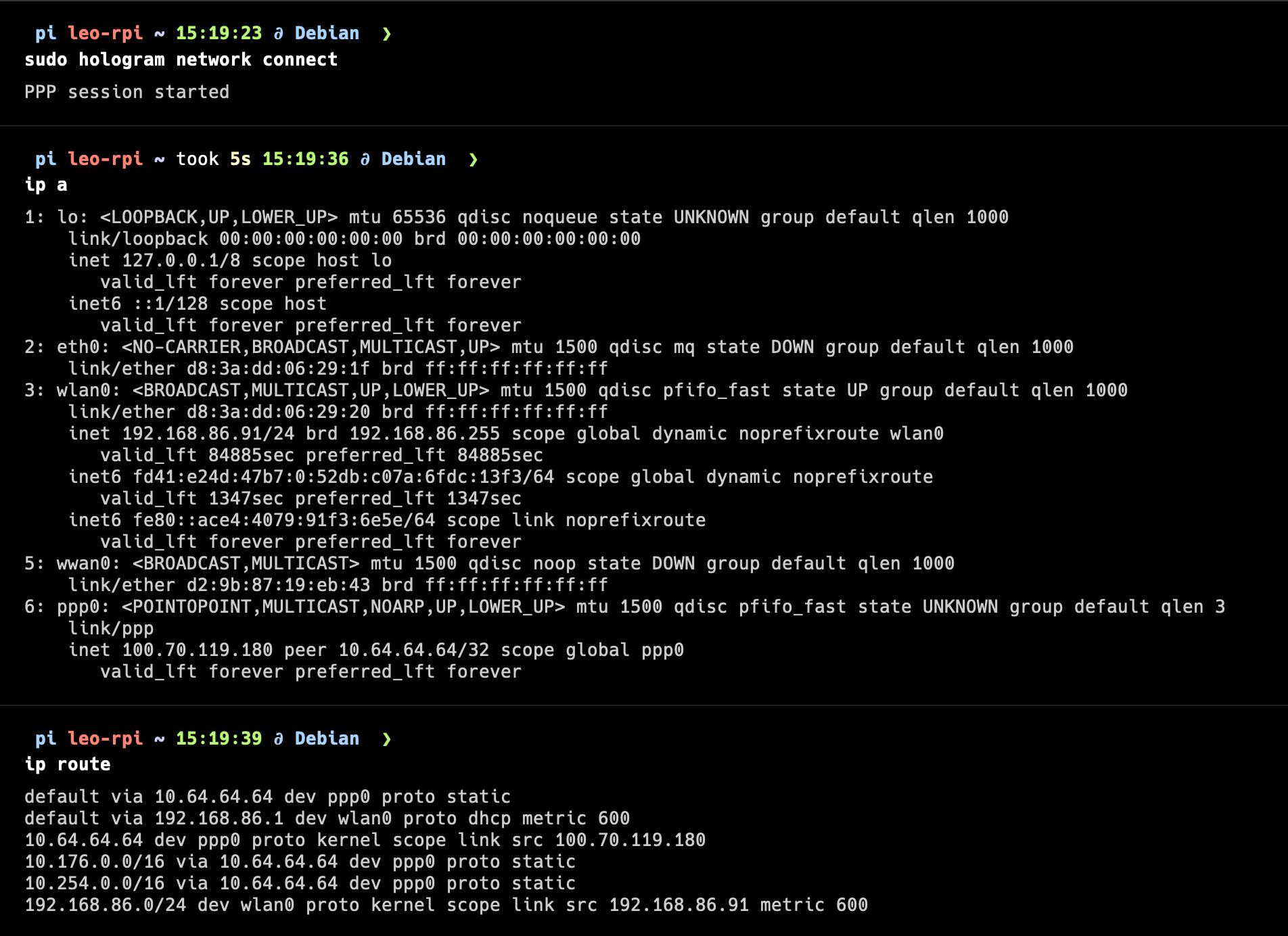
Run AT commands through ModemManager
You can put ModemManager in debug mode to run AT commands directly through it:Optional: AT command access alongside the cellular connection
By default, ModemManager claims all AT-capable ports on the EG25-G, which prevents external tools from accessing them. The fix is to free upttyUSB3 with a udev rule while leaving ModemManager in control of ttyUSB2 for the cellular connection.
1
Create the udev rule
2
Apply the rule
3
Verify
ttyUSB3 is now permanently free for AT command tools such as minicom or AT Command Wrangler, while the cellular data connection continues running on ttyUSB2. The rule persists across reboots automatically.