

How activation works in your dashboard
During the activation process, you will select a data plan for your new SIMs, review coverage and rates, set data usage limit preferences, organize your SIMs with tags or name prefixes, then finally pay and activate the SIMs so that they can connect for the first time. If you are activating SIMs for the first time, please note that you’ll need to add payment details and a billing address to complete the activation process. Learn more about adding a billing address.Limited access: Learn more about Test Mode and streamline your deployments by contacting our sales team.
Step 1 – Add SIMs to activate
First, enter the ICCIDs of the SIMs you want to activate. You can add SIMs individually, by entering a range, or by list upload using a CSV file. You can enter ICCIDs or EIDs when activating SIMs. Read about how to find SIM ICCIDs.If a SIM or profile cannot be added, you will see an error that distinguishes SIM-level issues from profile-level issues.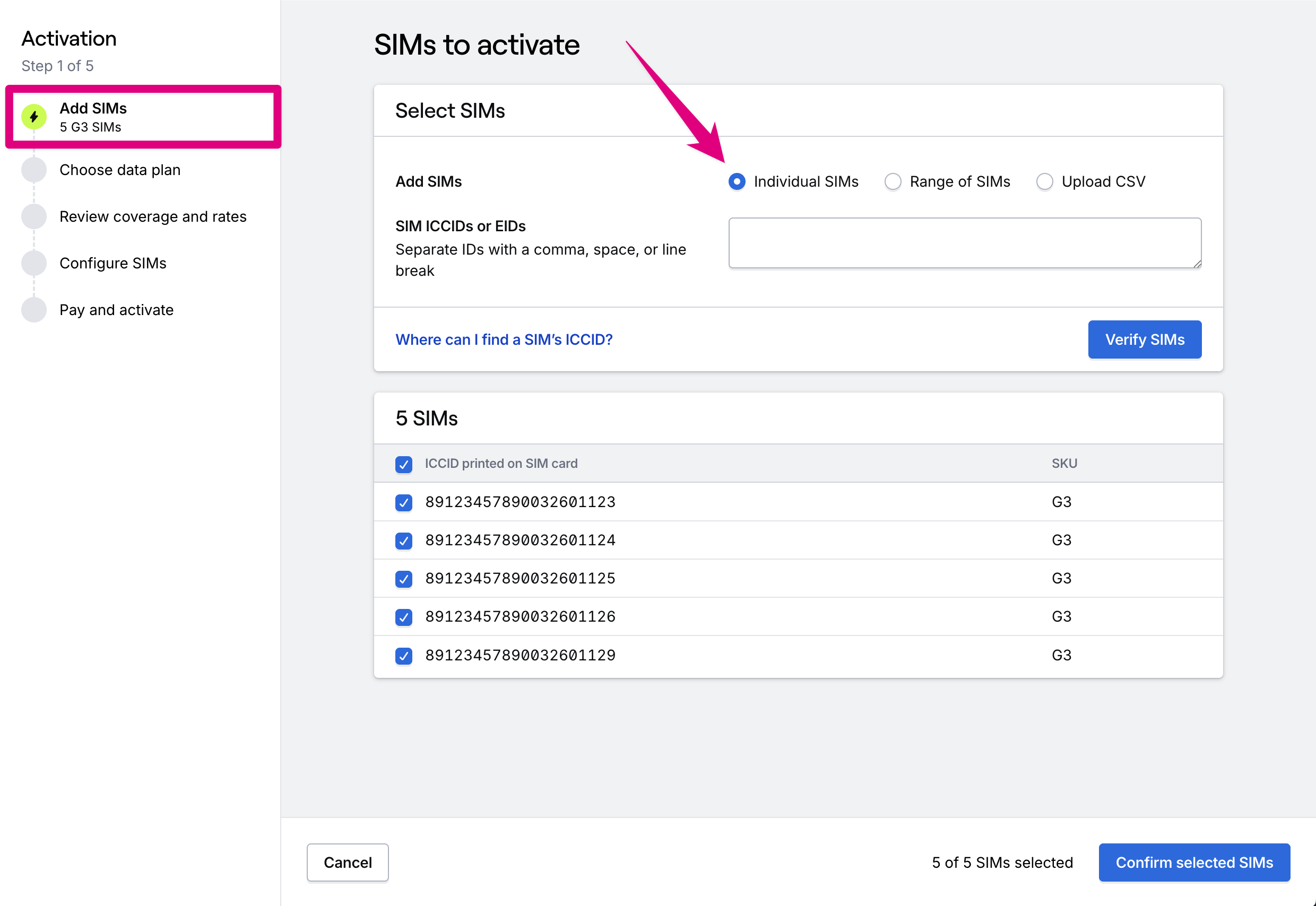
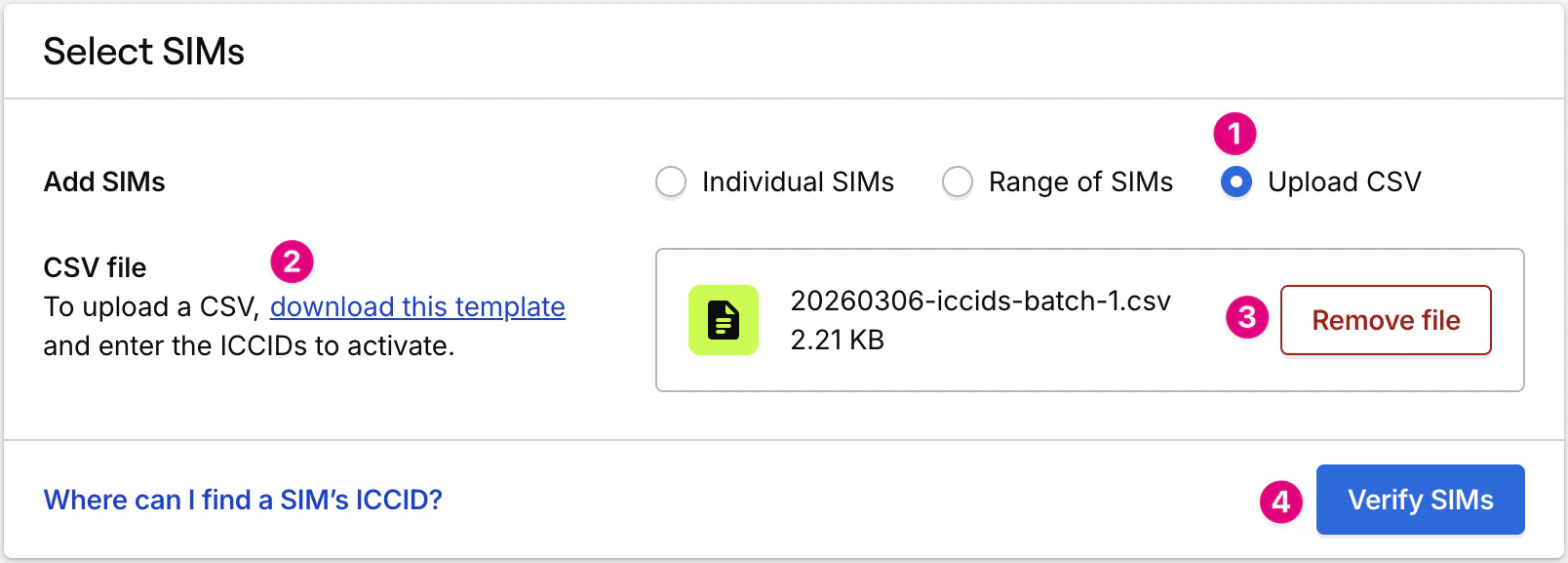
Enter SIMs individually by ICCID
Enter an ICCID by typing or copy/paste. You can add multiple ICCIDs separated by a comma, space, or line break. Barcode scanners can help quickly enter ICCIDs using the bardcode printed on each SIM card.Enter a range of SIMs
To choose a range of SIMs, enter the first and last ICCIDs in the range of SIMs to activate. You can find these ICCIDs printed on the box of SIMs you receive as the “ICCID Start” and “ICCID End”.Upload a CSV
You can add a list of SIMs by uploading a list of ICCIDs in aCSV file using the template linked on the page. Click the Download this template link to download the CSV template, or use the format shown below this step.CSV template format
Step 2 – Select coverage and rates
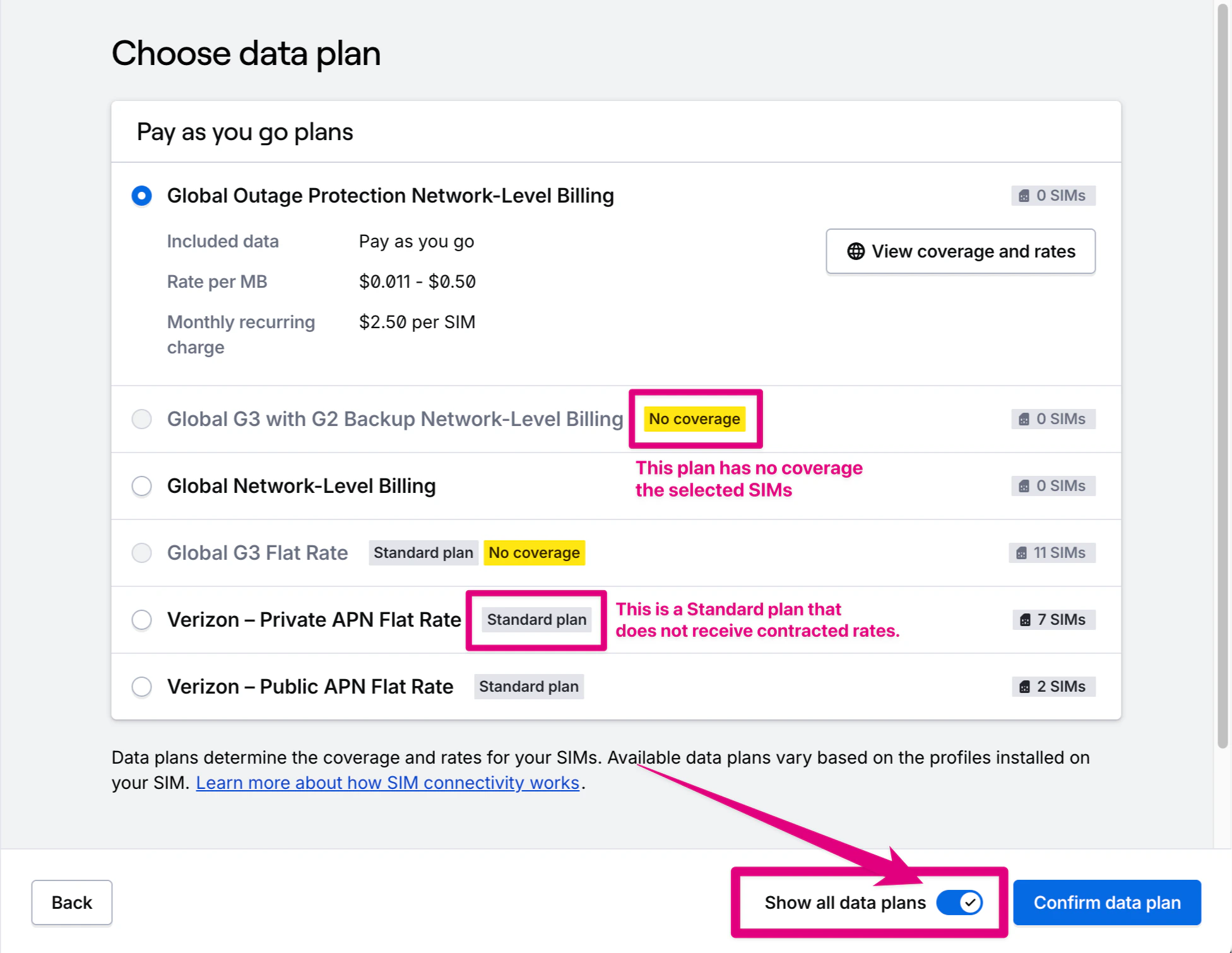
After entering SIMs, you can choose from data plans available to those SIMs. Data plans define the coverage and pricing available to a SIM, based on its installed connectivity profile(s).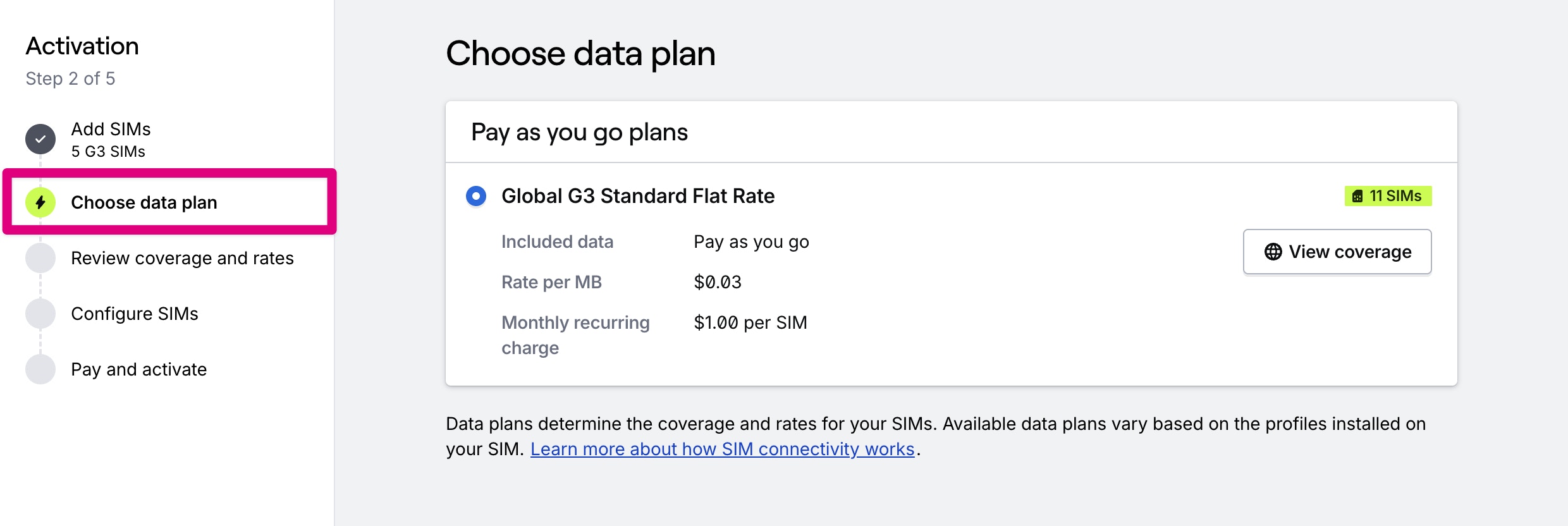
Step 3 – Review coverage and rates
Next, you’ll review all of the rates and coverage details for the data plan you’ve selected.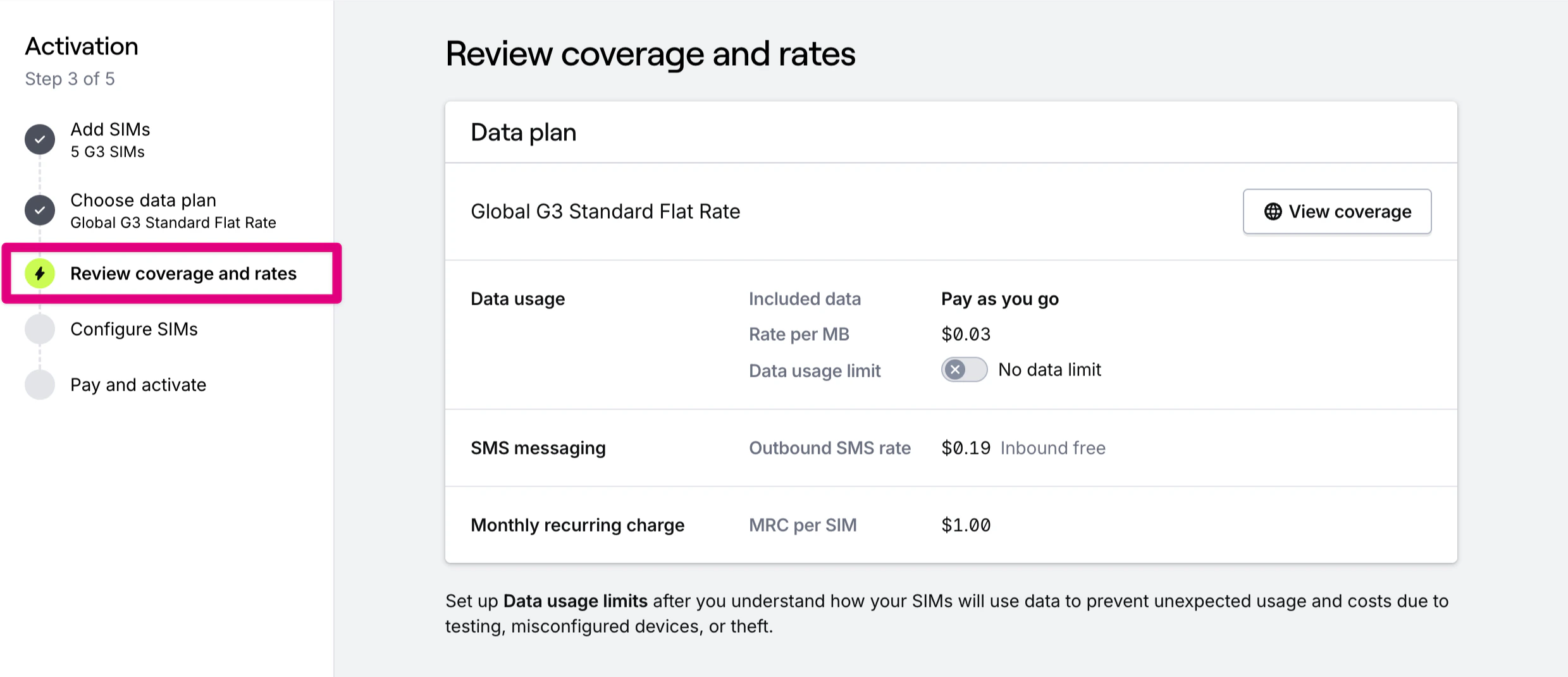
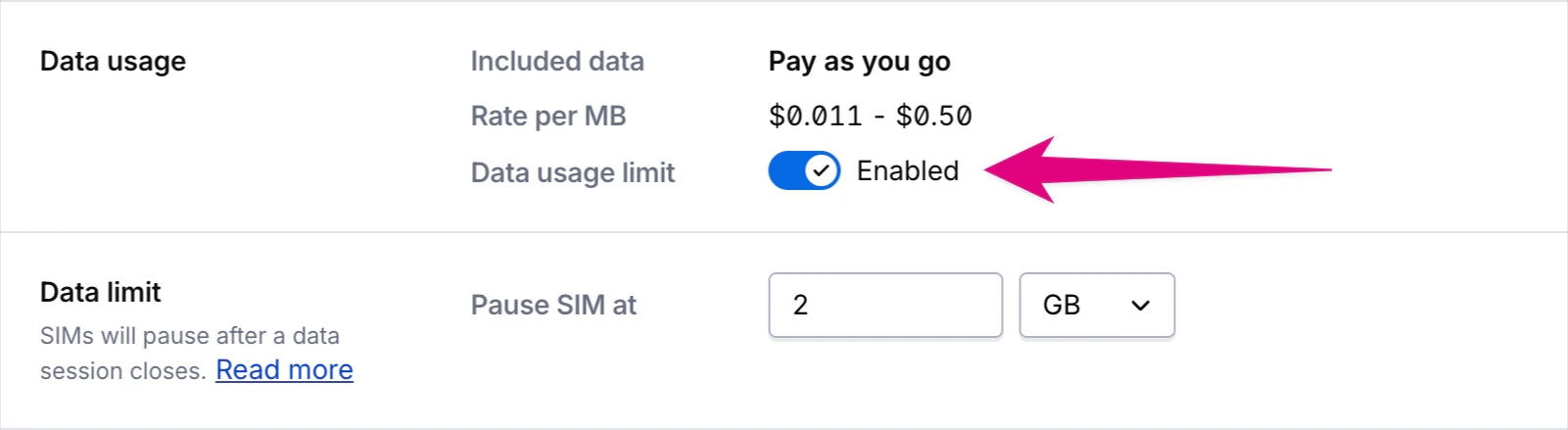
Step 4 – Organize SIMs with name prefixes and tags
Optional. In this step you can rename your SIMs using a custom prefix, or add tags to help you better manage and organize your fleet. Tags are an especially useful way to organize and report on your fleet, and are useful to get notified of events for specific groups of SIMs when creating alerts.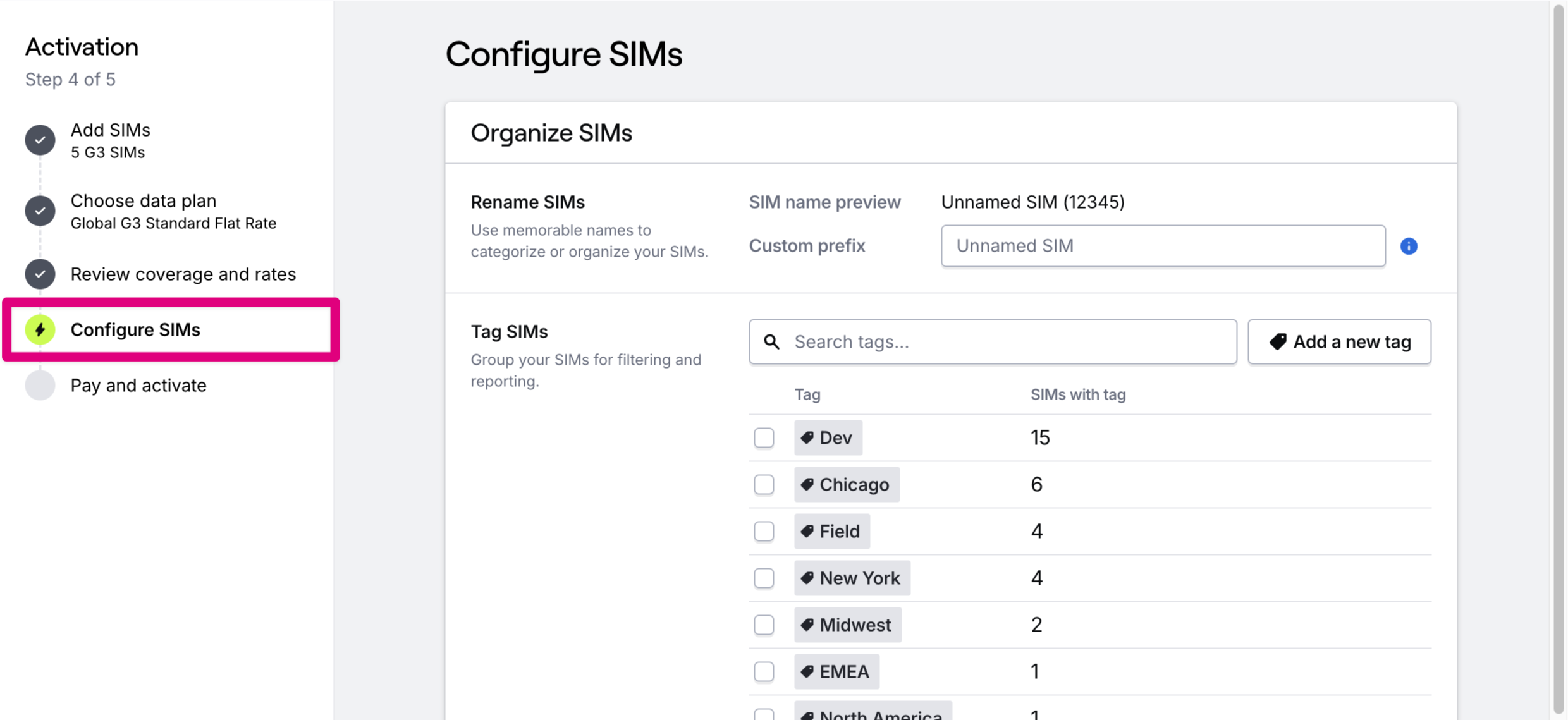
Step 5 – Review and activate
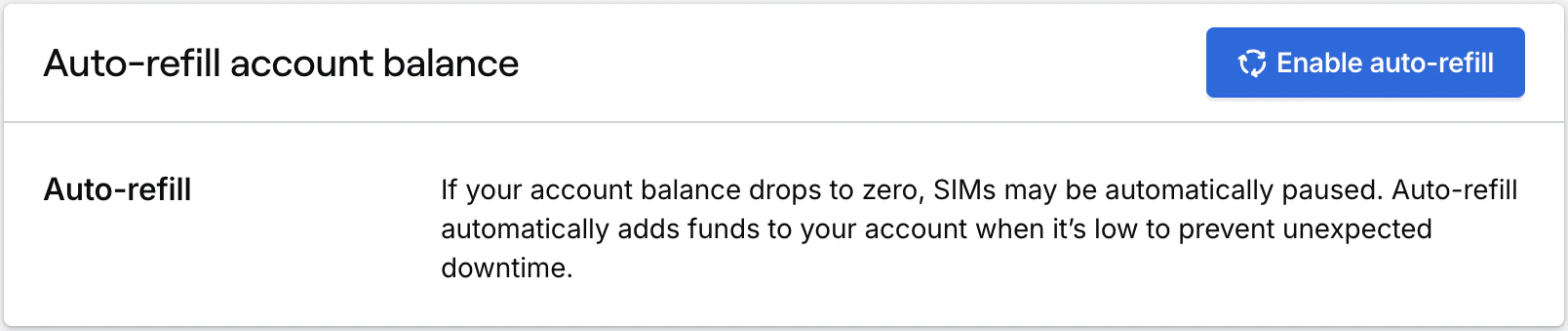
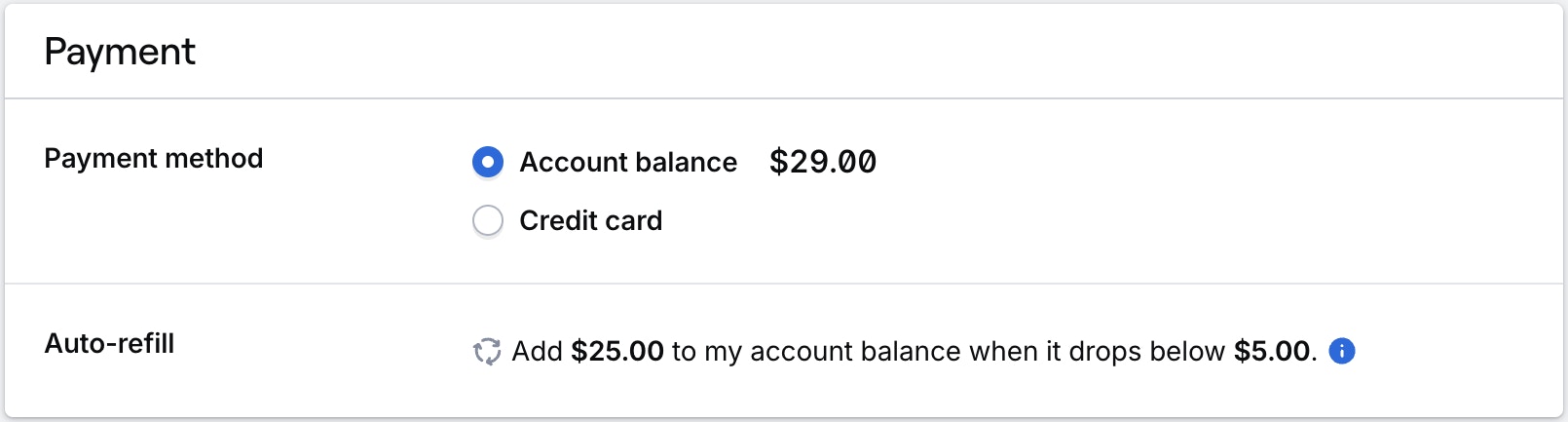
You’re almost there!In the final step, you have the chance to review all the selections you have made so far, confirm payment information and activate your device.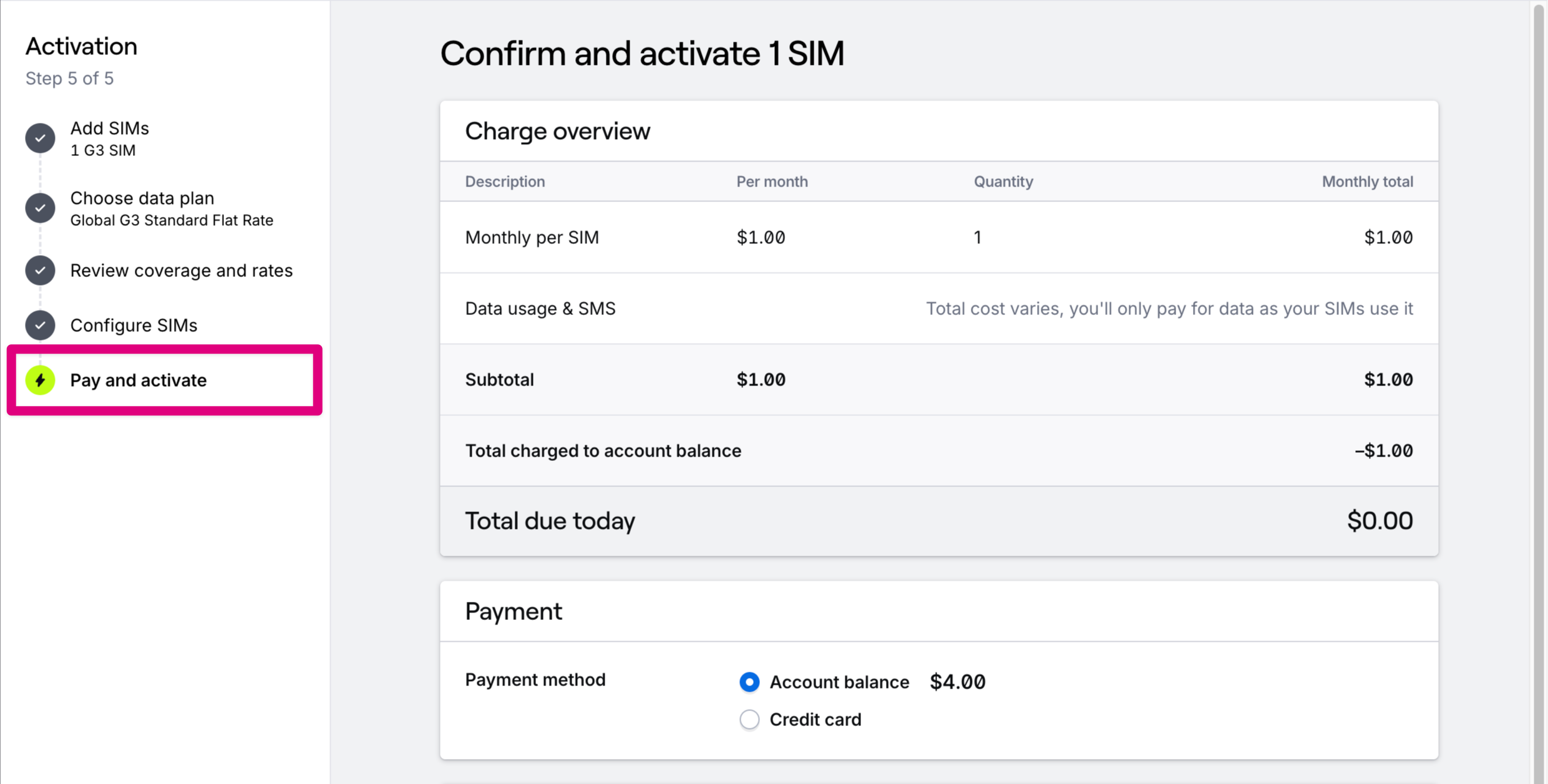
Step 6 – Set the APN for your device
Once you click Pay and activate, you will see a final confirmation screen with a reminder to set the APN for your device before you are taken back to your dashboard. Read more about setting the APN for your device.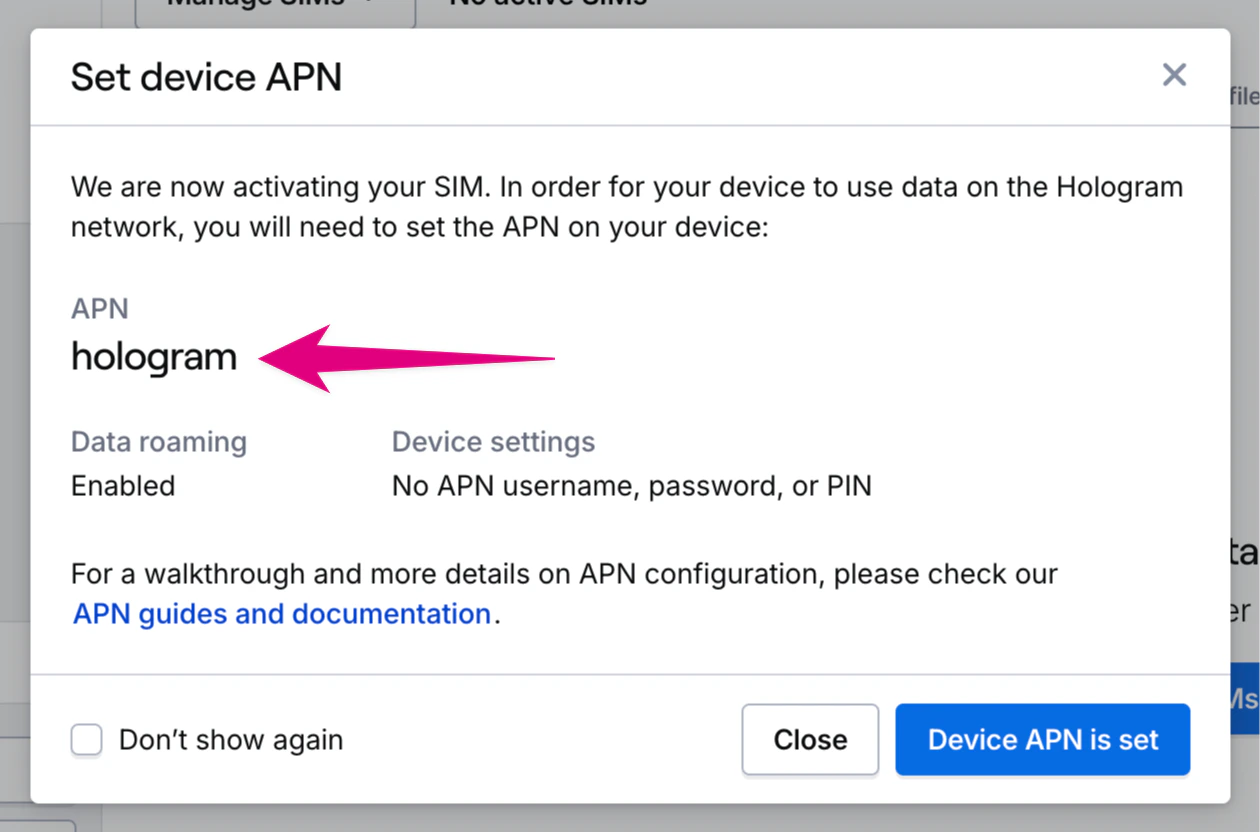
Activating SIMs out of Test Mode
SIMs in Test Mode will automatically activate after their free testing period ends with no downtime or action required on your part. Learn more about Test Mode. If your devices have limited connectivity windows or other constraints, you can force activate them out of Test Mode. This can also be used to activate SIMs with legacy Global-1 (G1) profiles, which experience a brief disconnection when activating to update profile states.Related guides
SIM connectivity overview
How to find SIM ICCIDs and EIDs
Read more about data plans, pricing, and coverage
Activating SIMs using the REST API
REST API: Activate SIMs (bulk)
Activate SIMs (bulk)
POST /links/cellular/bulkclaimRelated actions
Activate SIMs out of Test Mode
Force-activate SIMs that are in Test Mode
Set data usage limits
Configure per-SIM data and SMS limits