Do I need to purchase a phone number to send SMS messages to a SIM?
In most cases, no. All Hologram SIMs come with a preassigned non-geographic phone number known as the that allows you to send an SMS to your device directly from another SMS capable device, like your cell phone as an example. A non-geographic number is a type of telephone number that is not linked to any specific country or location, allowing the SIM to be reachable anywhere in the world the SIM needs to connect. In addition to using a non-geographic phone number, SMS can also be sent via API calls or via your dashboard. There are some use cases where non-geographic based phone numbers do not support the desired use case, or customer experience, and a localized phone number is needed. This is relatively rare, but still important for certain application spaces. In those use cases, Hologram offers the ability to purchase and assign a country specific phone number to the SIM card. This allows users to use the country specific phone number to send an SMS to the device. The localized phone number does not change the actual MSISDN (phone number) of the SIM card and only provides a geographically based alias for that SIM card to receive SMS. It does not change or impact any SMS sent by the device. Phone number pricing depends on the country you select, and is charged at a monthly rate. A localized phone number is not required for SMS, and localized phone numbers do not enable voice calling.Requirements to purchase a phone number
- To purchase a phone number you will need a billing address in that country (read about how to add a billing address).
- You also need enough balance in your Hologram account to cover the first month’s subscription for the phone number.
Localized phone number limitations
- Phone numbers are not available in every country, and are not available for every area code in the US.
- Localized phone numbers do not enable voice calling.
Purchase a localized phone number
1
Navigate to the SIM's Pricing tab
Find your SIM in the SIMs pages or using global search.
2
Select the Phone number add-on
In the Add-ons card, select Purchase phone number.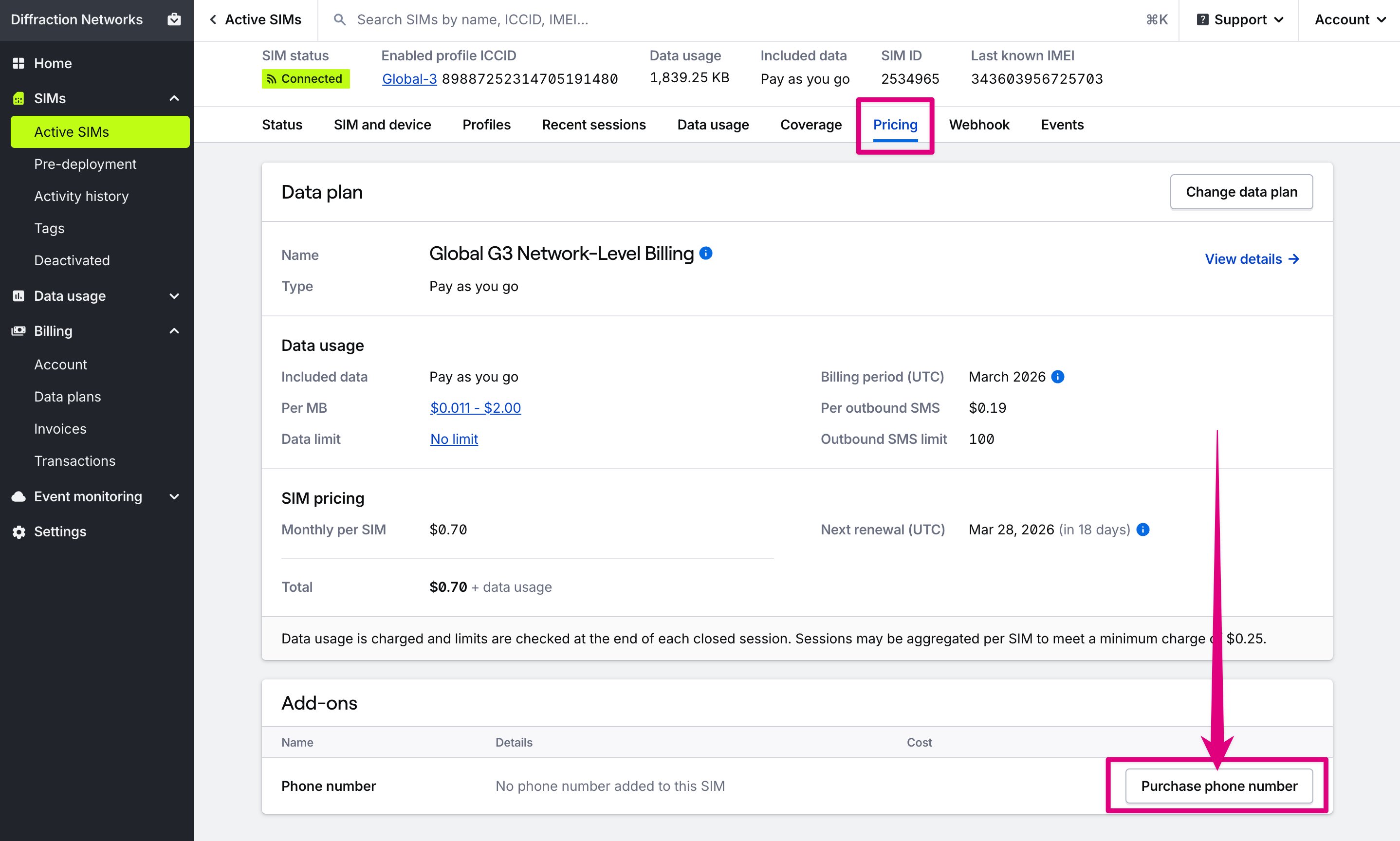
3
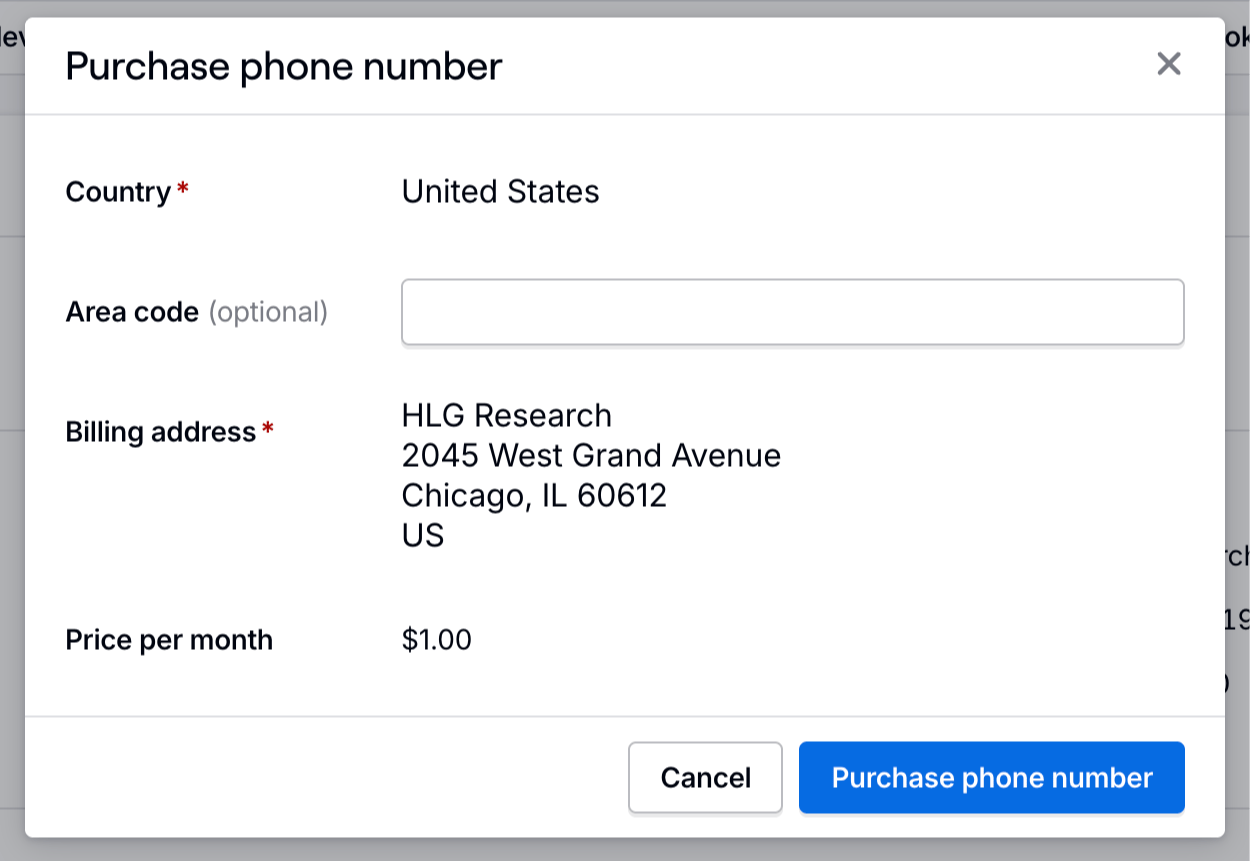
Confirm your choices and purchase the phone number
In the modal that appears, choose the country and area code if applicable. The price of your phone number will be displayed if there is one available.