

Changing user roles
1
Open Settings → This organization
Open the Settings section in the main menu, then navigate to the This organization page.
2
Change user roles
In the Team tab that loads by default you will see a list of all current users in your organization. Click the Manage access button in the right side of the user’s row.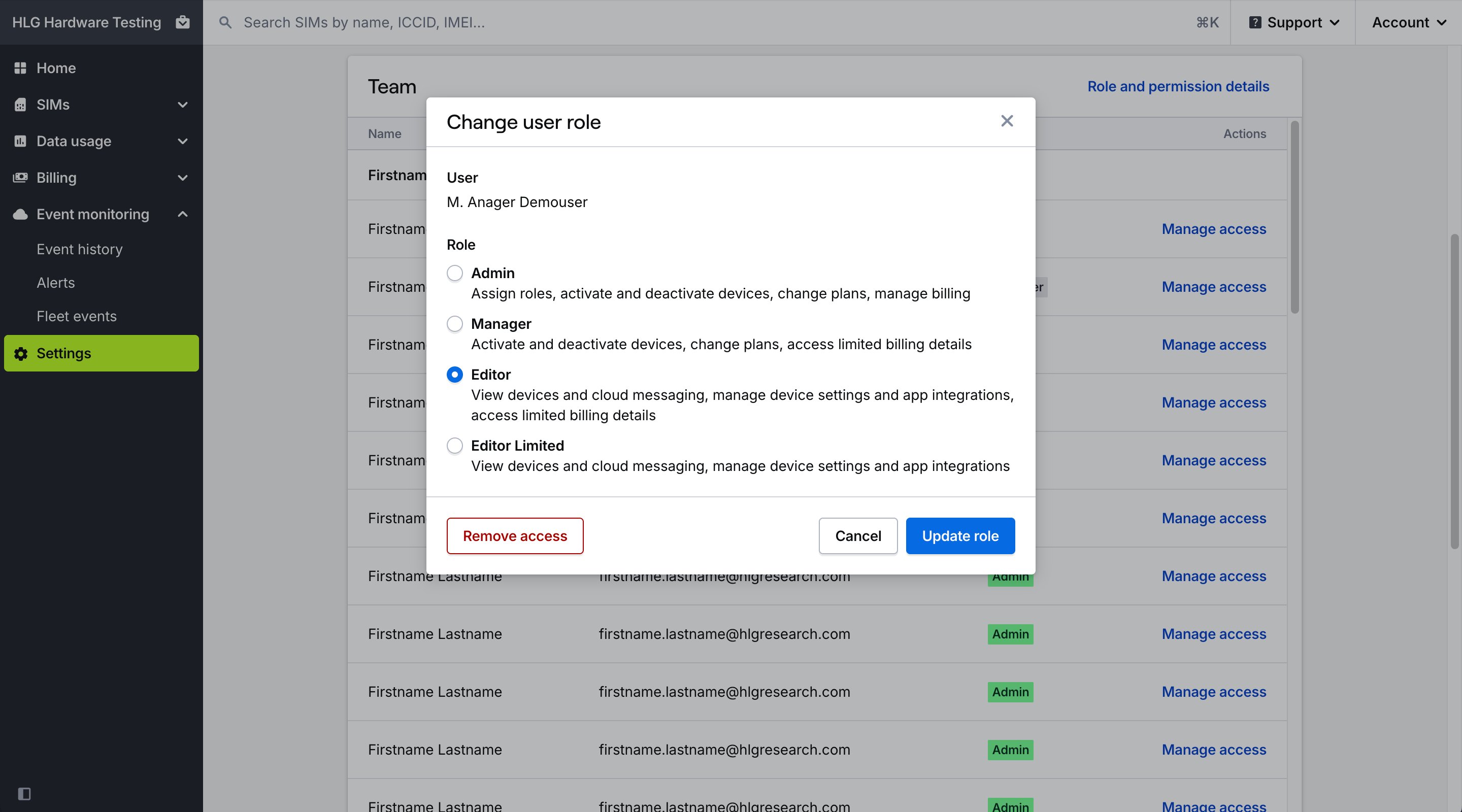
3
Select a new role
In the Change user role modal, select the new role and press Update role to save your changes.
User role permissions
Permissions are granted to users based on their role in the organization.Note: Only organization Owners and Admins can change user roles. The Editor Limited role is available to organizations with an active contract by contacting our support team.
Related actions
Invite collaborators
Add teammates to your organization