

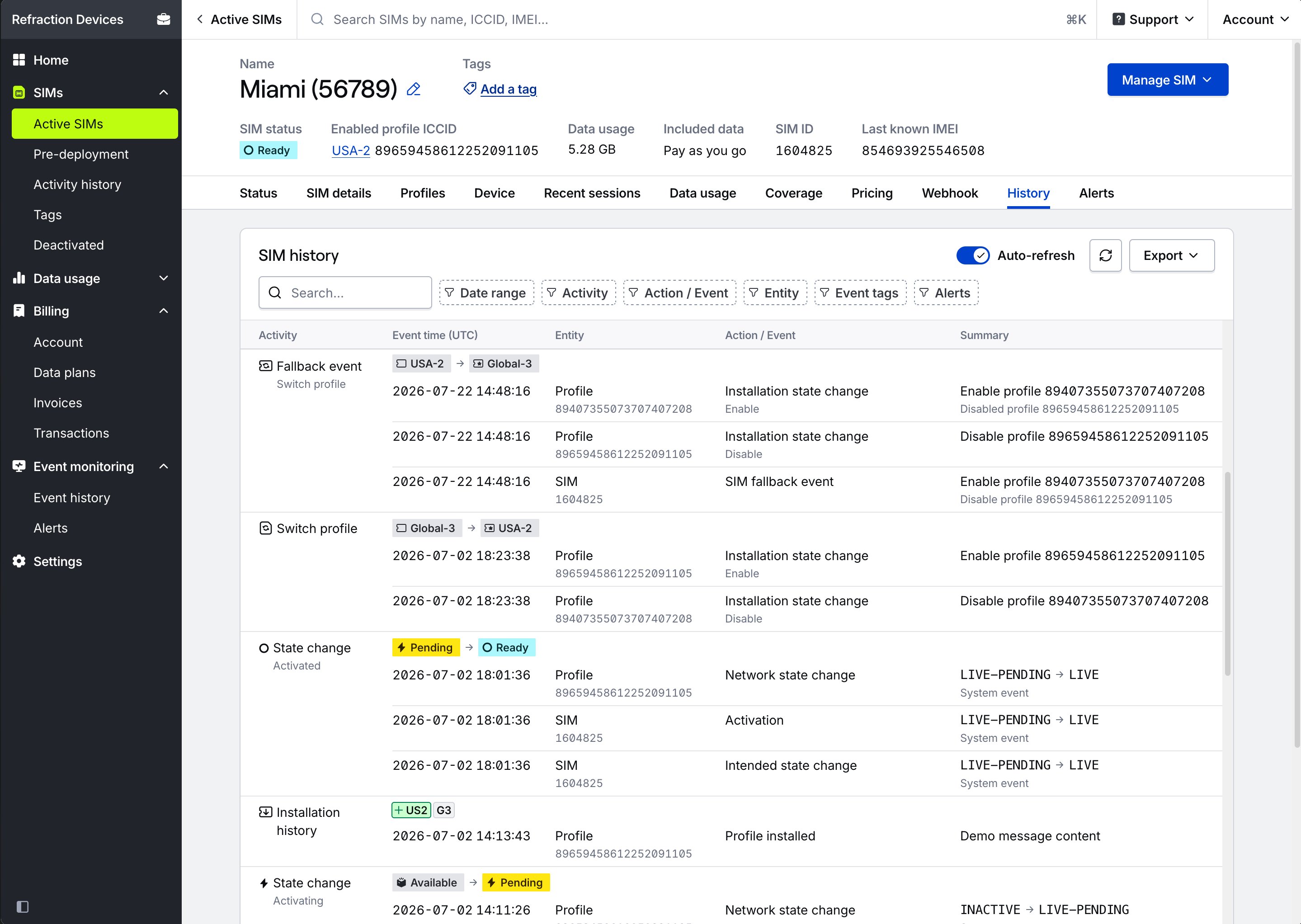
Note: The History tab replaces the Events tab, along with the Fallback history and Profile history cards that used to display on the Profiles tab. Links to the Events tab open the History tab instead.
SIM history table
Activities are listed newest first. Each activity groups related actions together to help you understand the context of an activity and the actions that took place to make it happen.Activity types
Activity types
Outage Protection™ switched the SIM to another profile, generally because of a carrier disconnection. Read about fallback events.
The enabled profile on the SIM was changed to a different profile. The detail line shows who started the switch: User, Conductor, or System. Related profile operations, like the enable and disable that make up a switch, are grouped together.
The SIM or a profile changed status, like pausing, resuming, activating, deactivating, or entering Test Mode. Includes both the SIM’s intended network state change and each profile’s network state change, and who made the change.
The SIM changed data plans.
A record from a profile’s installation lifecycle on the SIM, such as a profile being installed or uninstalled, with a description of what happened. Hover over a profile to see its configuration.This activity type replaces the Installation history card that used to display on the Profiles tab.
The SIM was seen in a device for the first time, or the device’s IMEI or IMEI TAC (hardware model) changed.
An SMS, TCP, UDP, or Socket API message was sent to or from the SIM, or an API response to a message. An inbound SMS and its delivery receipt are grouped together.
The SIM reached its data limit and was paused.
The SIM reached a data warning threshold.
A Conductor configuration change ran on the SIM. Each run is one group. See Conductor configuration changes. Some activities may display as separate from a Conductor activity due to timing or other factors, even though Conductor likely orchestrated the actions.
A requested profile operation, like enabling, disabling, downloading, or deleting a profile, failed on the SIM.
Other Hologram Cloud and legacy events recorded for the SIM, like heartbeats and tags added by alert modifiers.
The SIM or profile was created.
Column descriptions
Column descriptions
What happened, like Switch profile, State change, Plan change, or Message. Some activities add context below the label, like the profiles a SIM switched between, the statuses it moved between, or the progress of a Conductor configuration change.
When the record was logged.
Whether the record applies to the SIM, one of its Profiles, or the Device the SIM is in, with the entity’s ID below it. For profiles, this is the ICCID, not the profile/link ID.
The specific change or event, like Enabled profile change or Inbound SMS event. A second line adds detail, like whether a profile was enabled or disabled, or why an operation failed. Errors display in red. Alerts this event triggered display as chips; select one to open the alert.
The details of the change, like the old and new state, the data plan or profile the SIM changed to, the old and new IMEI, the data limit that was reached, or who made the change. Changes made by Hologram systems read System event. Select a data plan name to open it in a new tab.
How to filter SIM history
Use the filters above the table to narrow the history down. Each filter option shows how many loaded events it matches.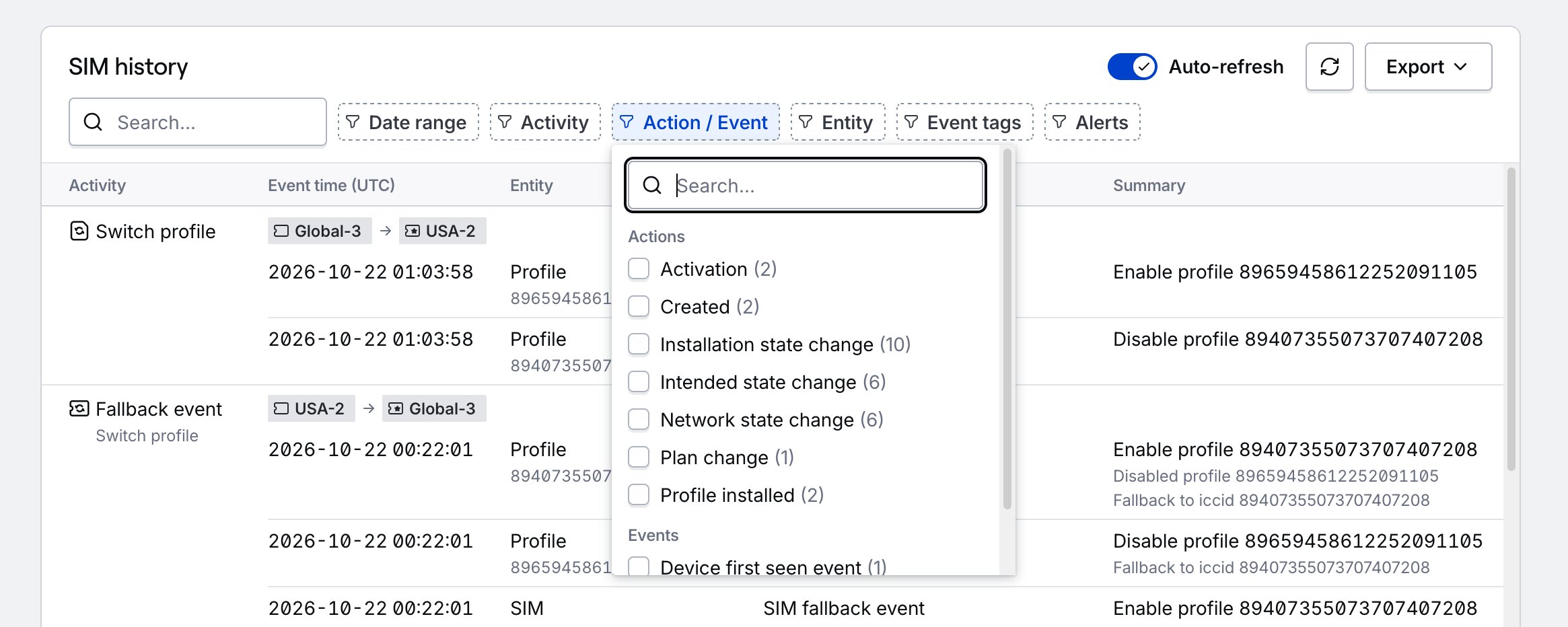
- Search - Matches text in the activity, the action or event, its details, and its full JSON record, including IDs, states, and message bodies.
- Date range - Choose All time, Last 24 hours, This month, Last 7 days, Last 30 days, or Last 90 days. Choose Custom range and set both a Start date (UTC) and End date (UTC) to apply your own range.
- Activity - Show only some activity types.
- Action / Event - Show specific actions or events, grouped by Actions and Events.
- Entity - Show records for the SIM, a specific profile, or the device.
- Event tags - Show events with specific event tags.
- Alerts - Show events that Triggered an alert, events that Matches an alert without triggering one, or events with No alert yet.
How to view activity details
Select any row to open Activity details, which shows the activity type, the timestamp, and the full JSON record, which you can copy for troubleshooting. Base64-encoded message bodies display decoded. For events from the event feed, the modal also shows any triggered alerts, matching alerts, any errors, and prompts to create an alert for the event if one doesn’t exist.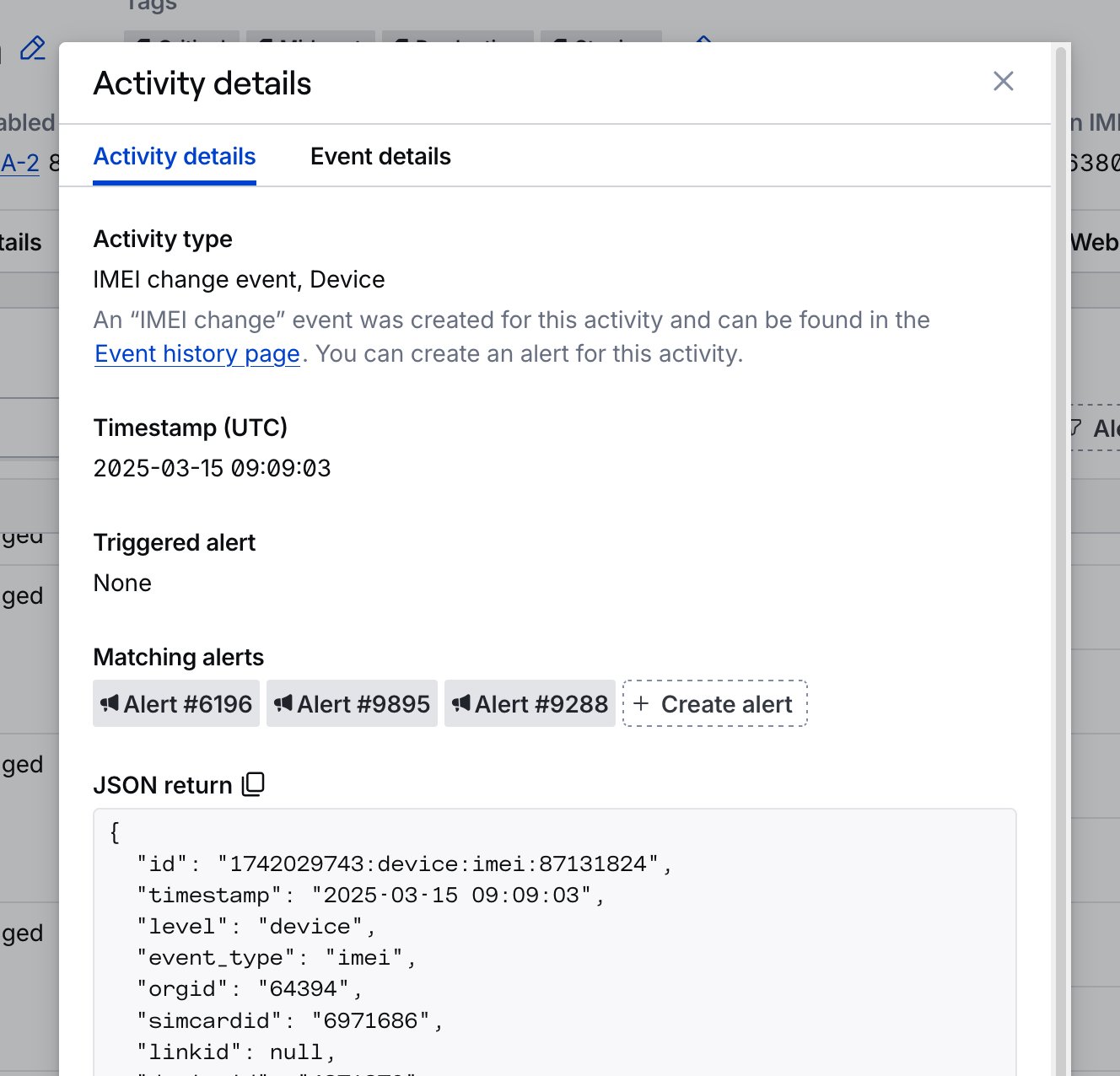
Create an alert from an event
If an event can trigger an alert and you don’t have one for it yet, select Create alert in Activity details. The Create alert form opens with the alert type and event option already selected and limited to this SIM, so you only need to name the alert and choose how you’re notified.How to export SIM history
Select Export in the top right of the table, then Export to CSV or Export to JSON. The export includes every row that’s loaded and matches your filters. Load more history before exporting to include older events.Conductor configuration changes
When Conductor runs eUICC operations on a SIM, like installing, enabling, or deleting profiles, each run displays as a Conductor activity. The detail line shows the run’s progress, like Step 3 of 5. While a run is in progress, a banner at the top of every SIM details tab shows the current step and how many actions are complete. Some actions on the SIM aren’t available until the run ends. Select View progress in the banner, or select a Conductor row in the History tab, to open the configuration details.Configuration details
Configuration details
Where the run stands, like Pending, and when its status last changed (UTC).
The SIM’s profile configuration now. Displays only for the SIM’s most recent configuration change.
The steps Conductor plans to take, like installing, enabling, or uninstalling a profile, or setting the target fallback profile. Steps that failed show the error, and steps that weren’t attempted show why. A banner above the plan calls out each step that failed.
The configuration Conductor is working toward. Open a profile to see its intended status and fallback role.
The SIM’s profile configuration when the run started, as Conductor found it when it checked the SIM’s profiles.
Where else SIM history displays
The same history, filtered to one part of the SIM, also displays at the bottom of other tabs:- SIM history on the SIM details tab shows records for the SIM itself.
- Profile history on the Profiles tab shows records for every current and removed profile. Each profile’s details page shows records for that profile.
- Device history on the Device tab shows records for the device the SIM is in, such as IMEI changes.
Related guides
Create alerts for a SIM
Get notified by email or webhook when events happen for this SIM.
View event history across your fleet
Learn about event tags and alert types
Limited access: Some functionality in your dashboard is restricted to roles with access.